Jobs
Create A New Job
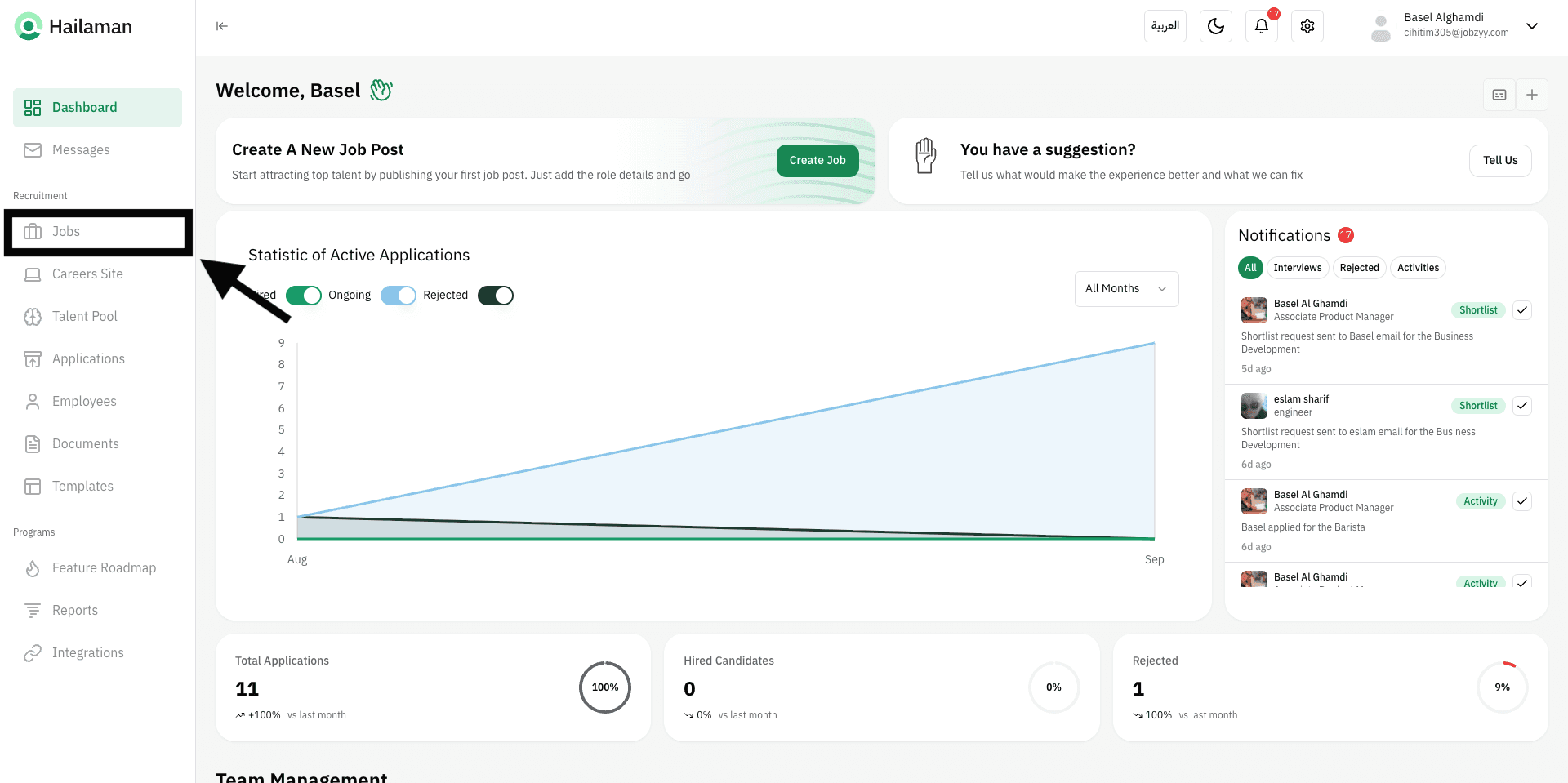
Click on the “Jobs” page from the sidebar.
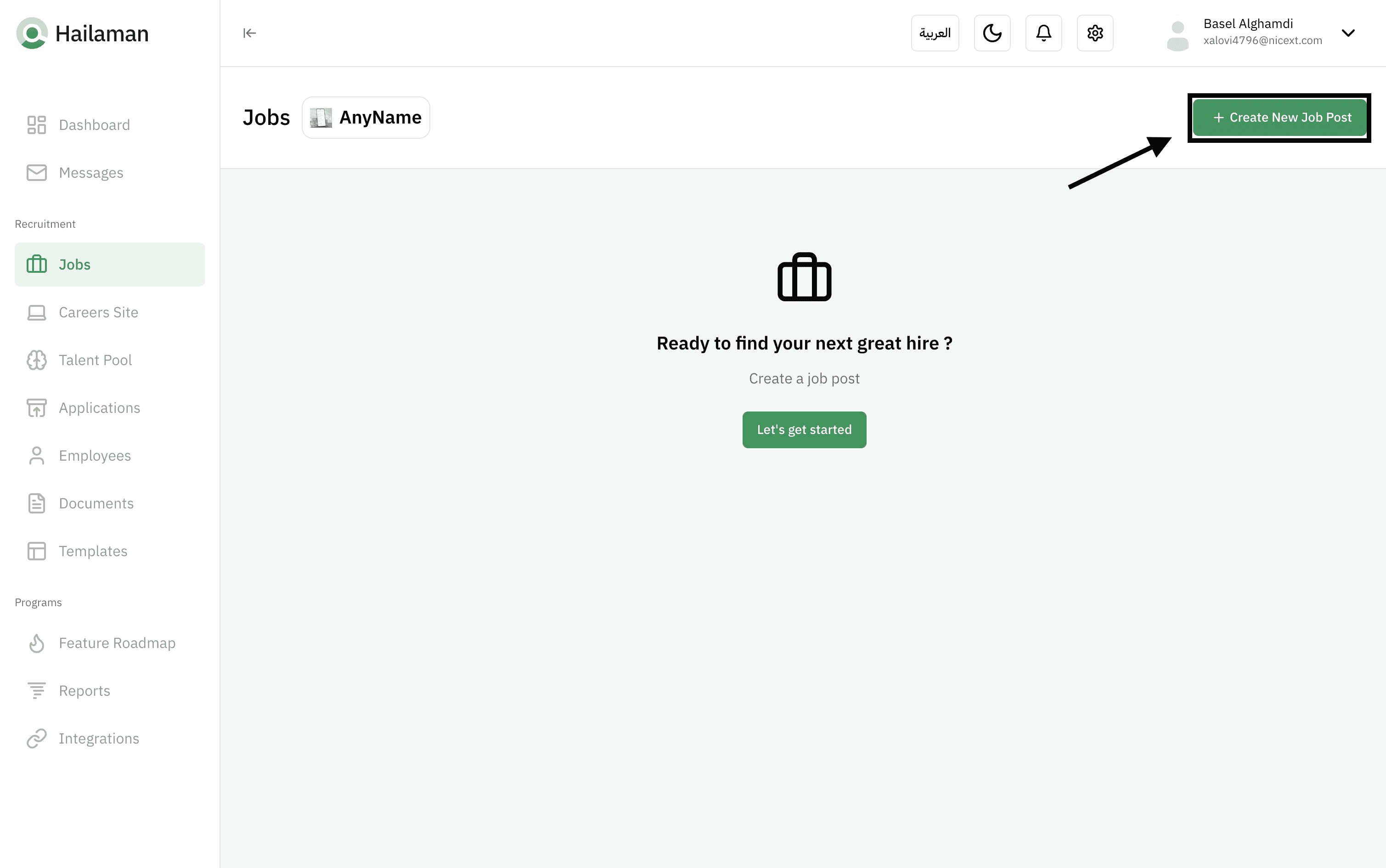
Then click on “Create New Job”.
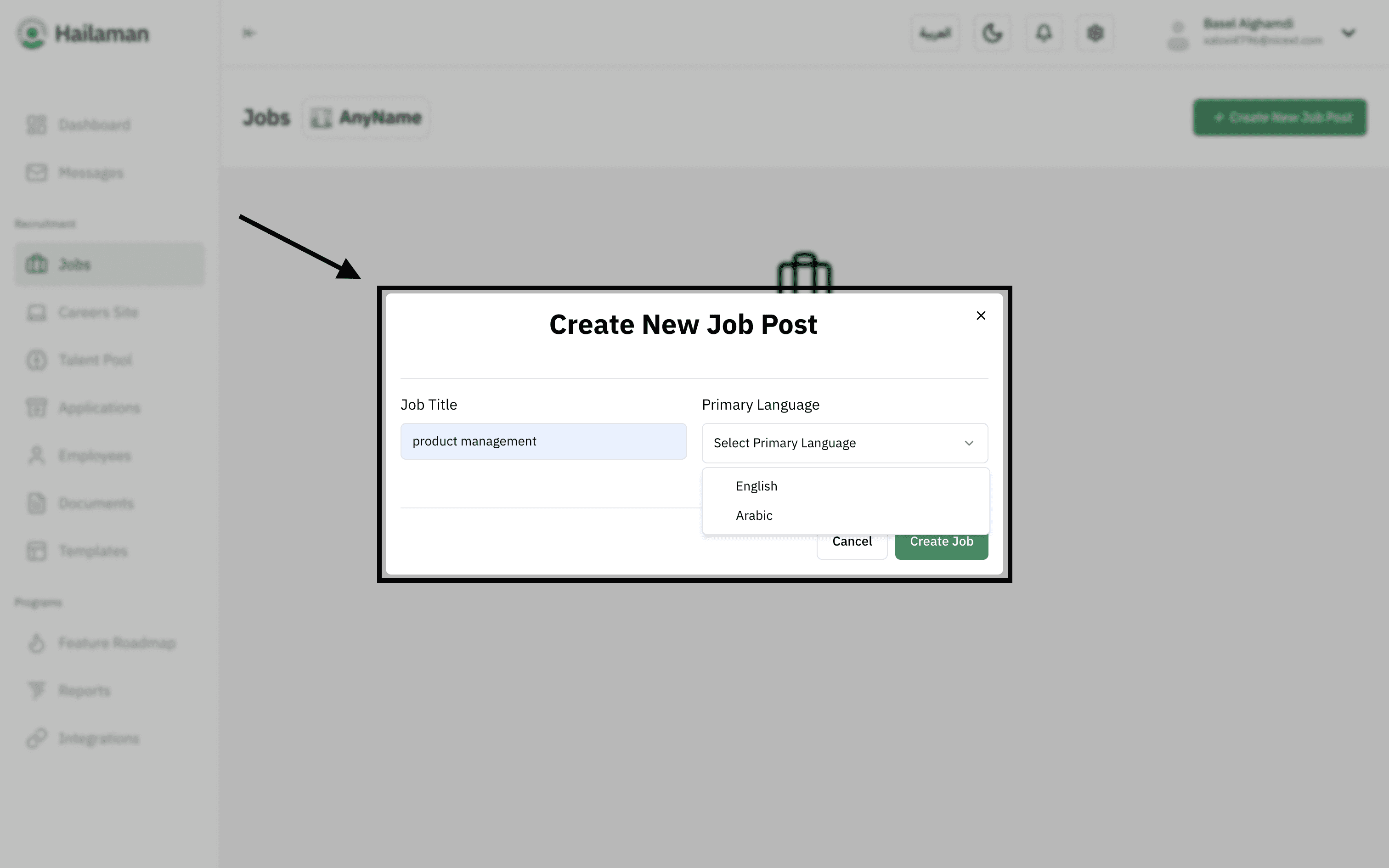
Enter the “Job Title” and also the “Primary Language” that the job application will be based on.
From the “Job Details” section, fill in all the required information (e.g., department, location, employment type, etc.).
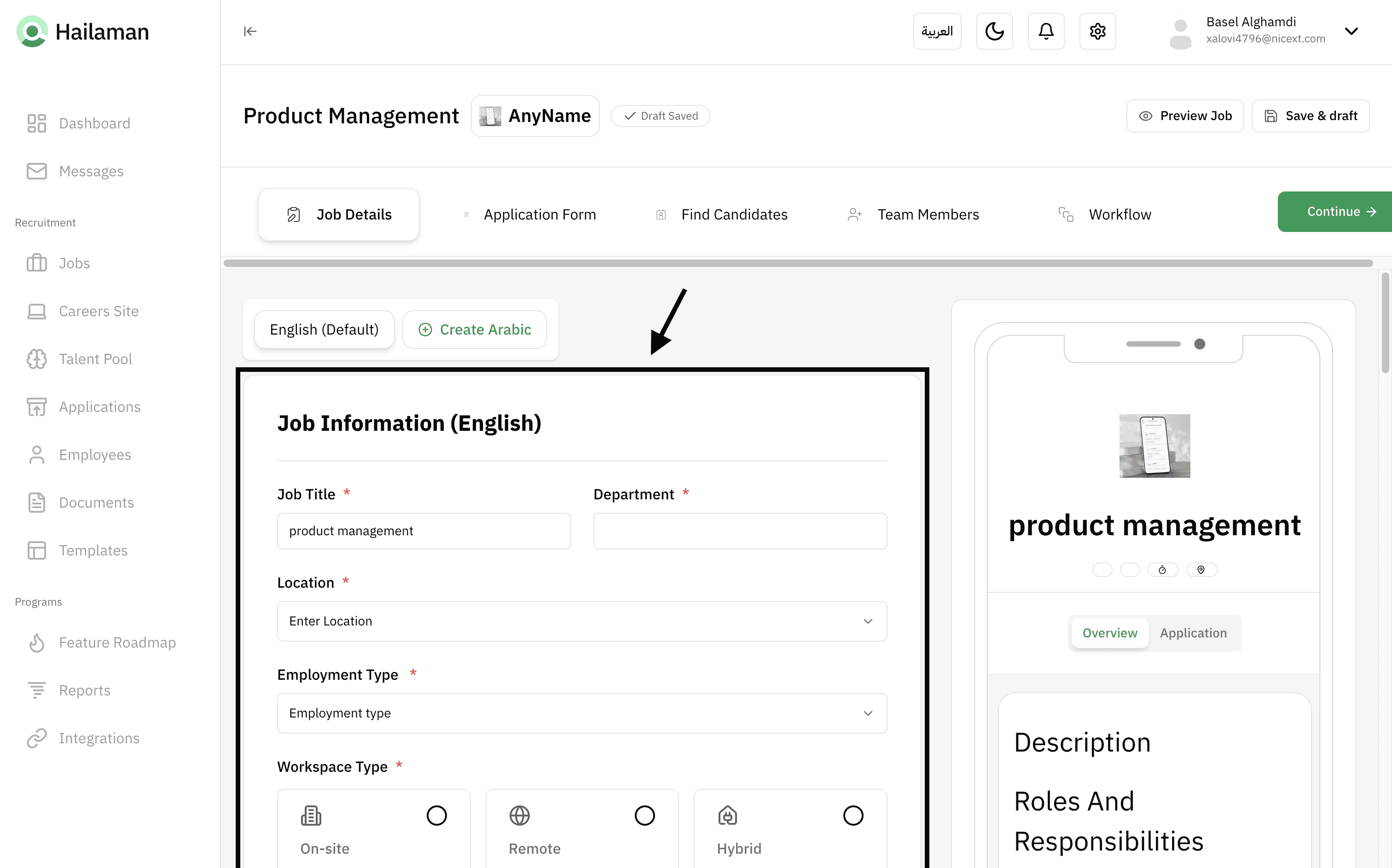
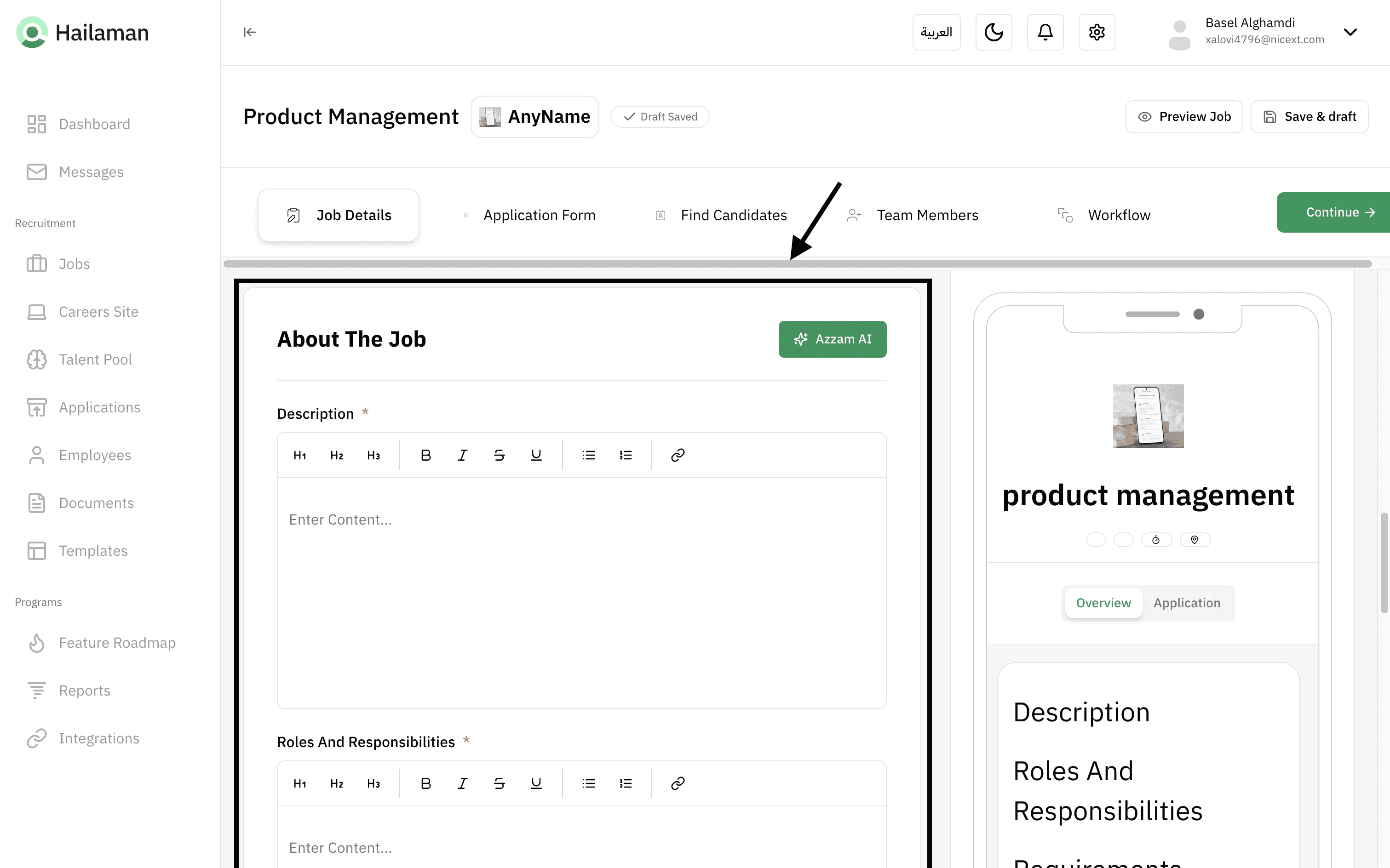
At the bottom, you can fill in the job information that the applicant can view and read.
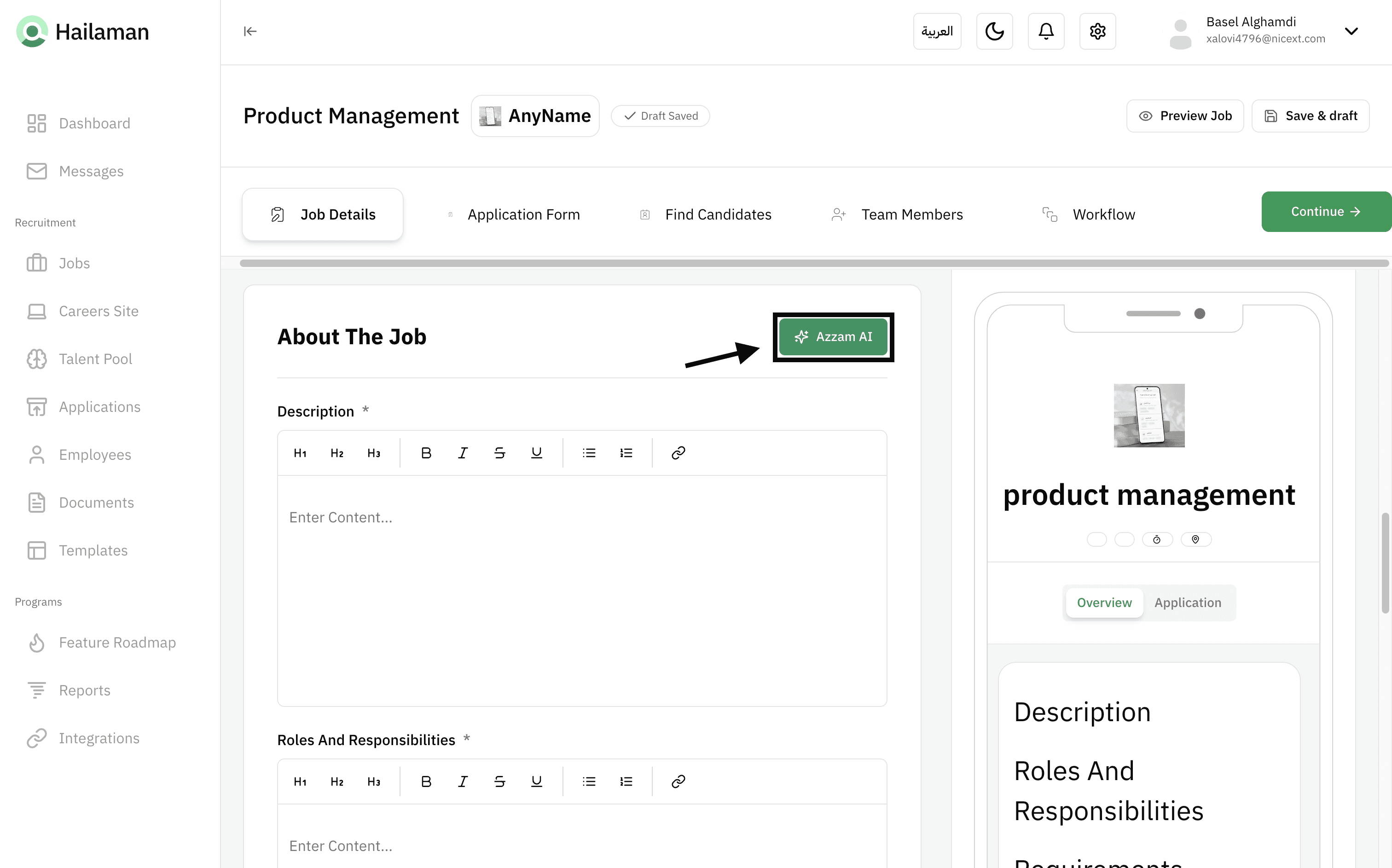
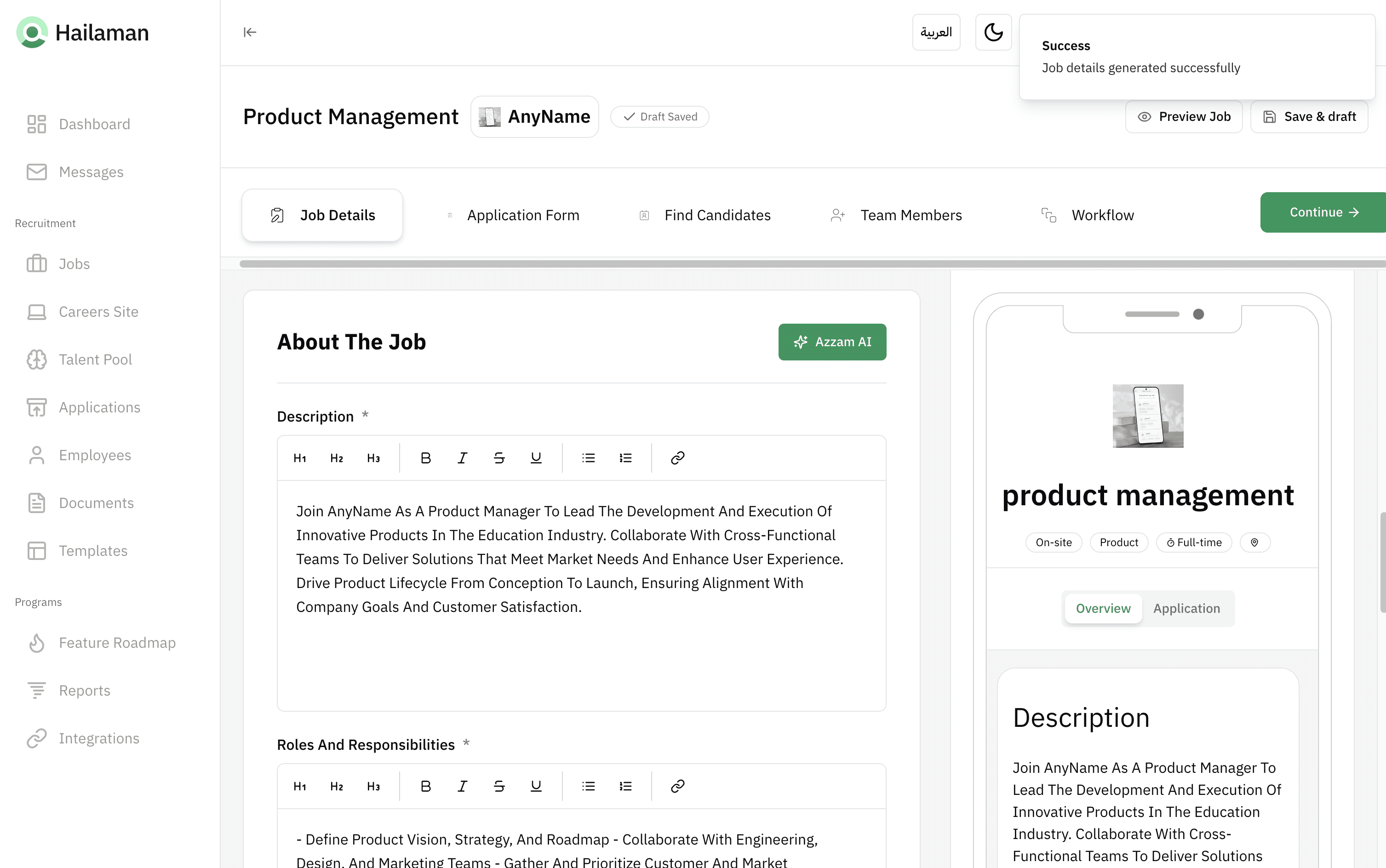
Or you can click on Azzam to have it filled in automatically.
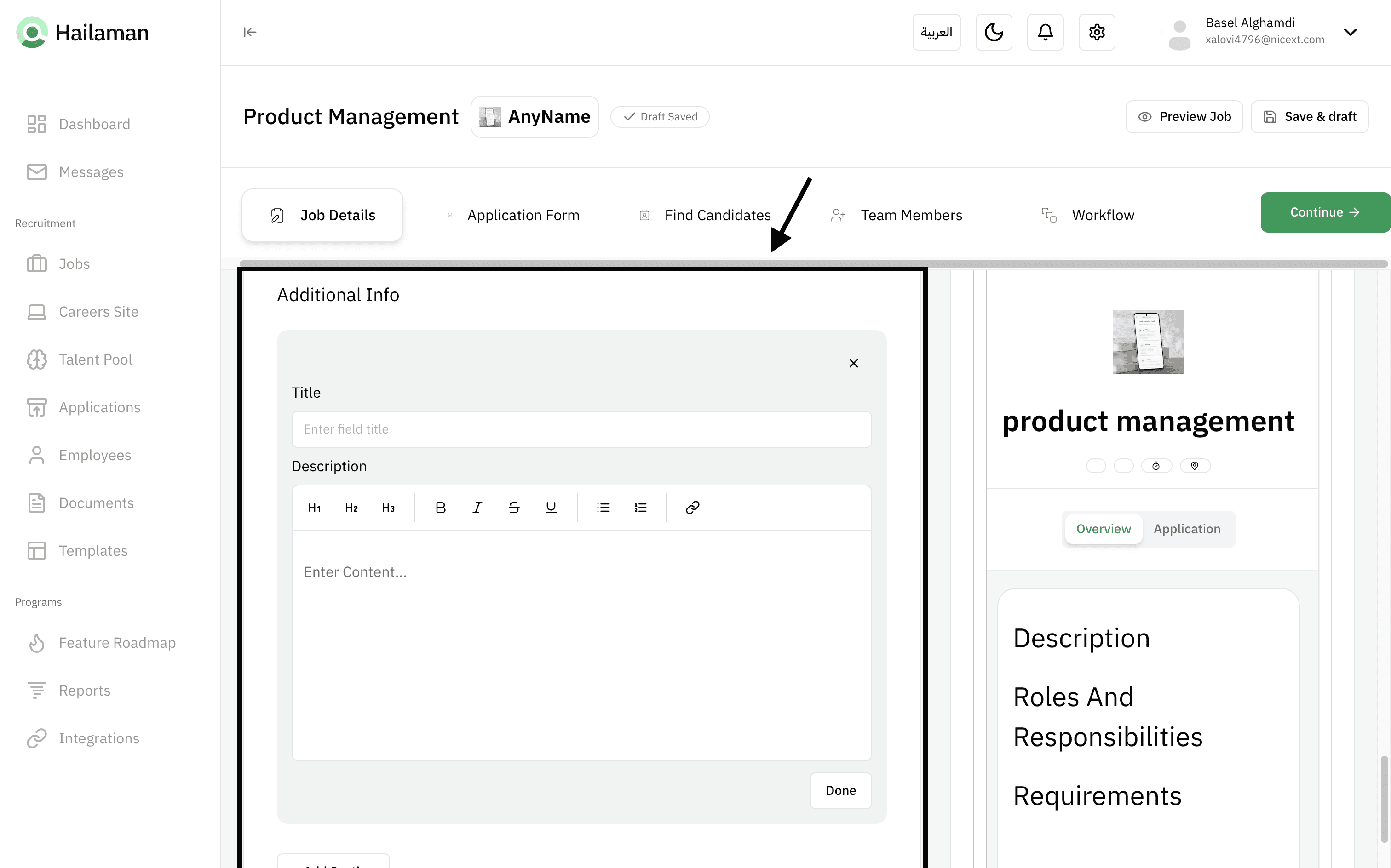
And you can add additional descriptive information if you wish.
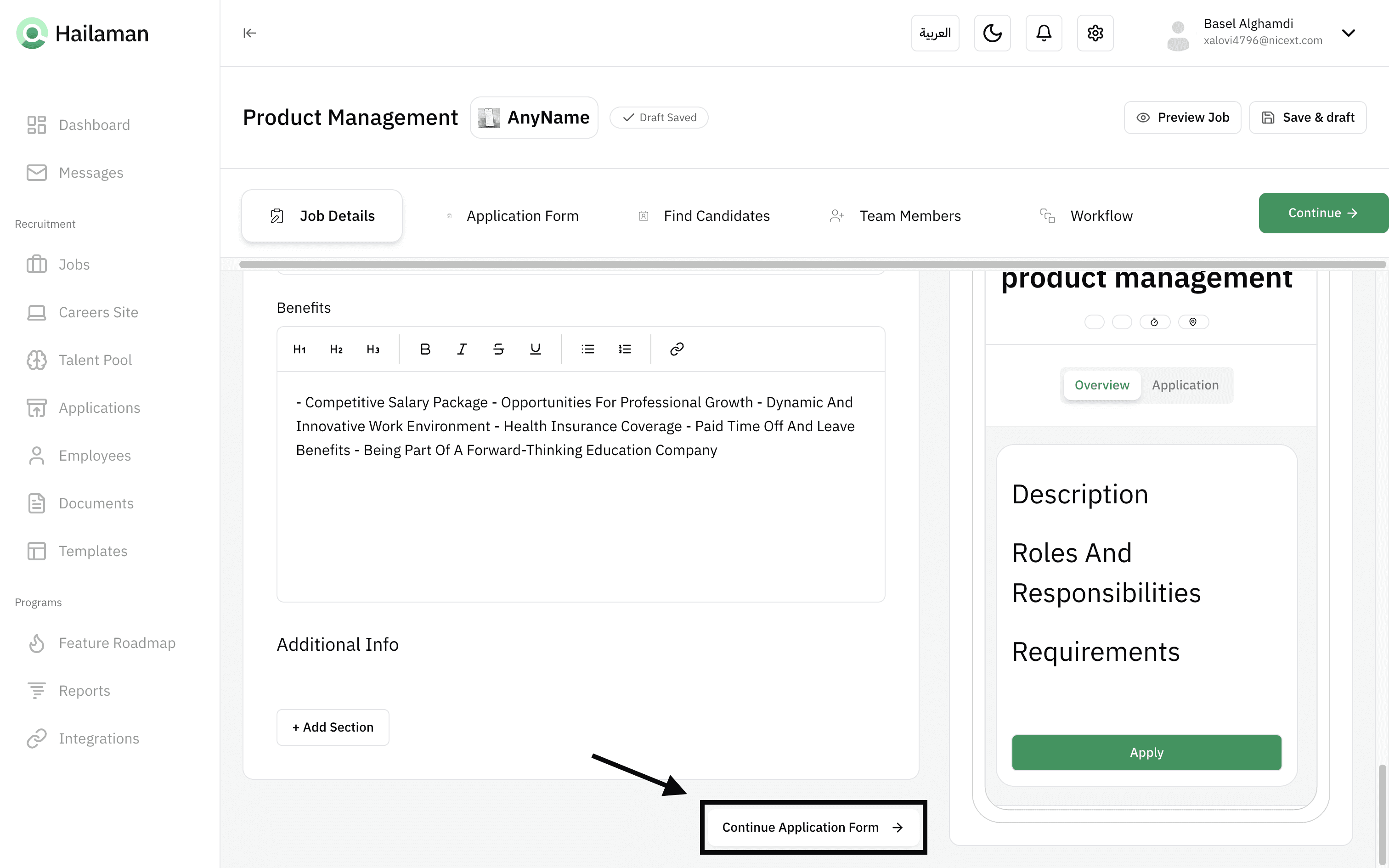
Then click on “Continue Application Form” at the bottom, or click on “Continue” at the top to proceed to the next section.
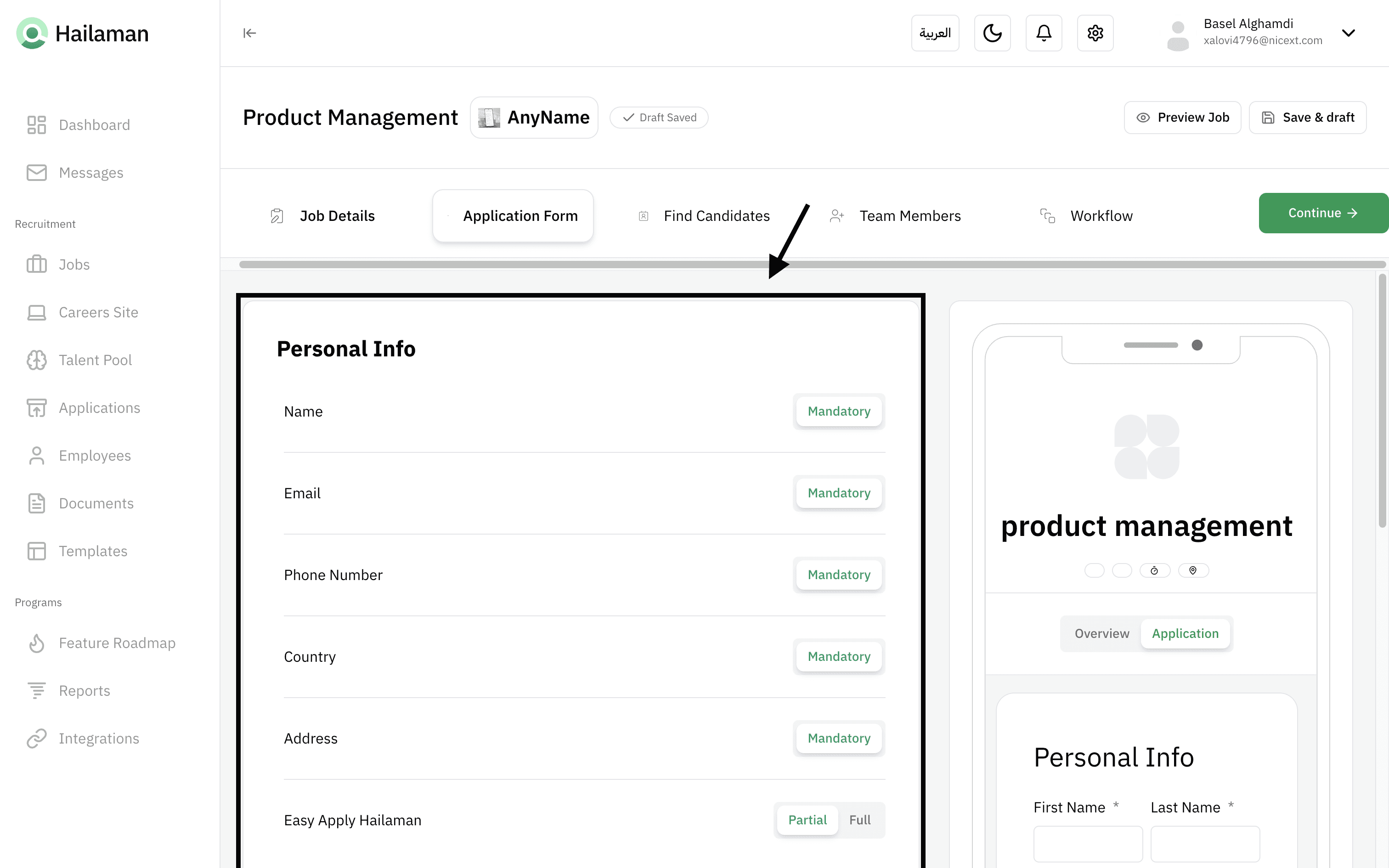
From here, the process of collecting information filled out by the job applicant begins, where you can set the required questions and others.
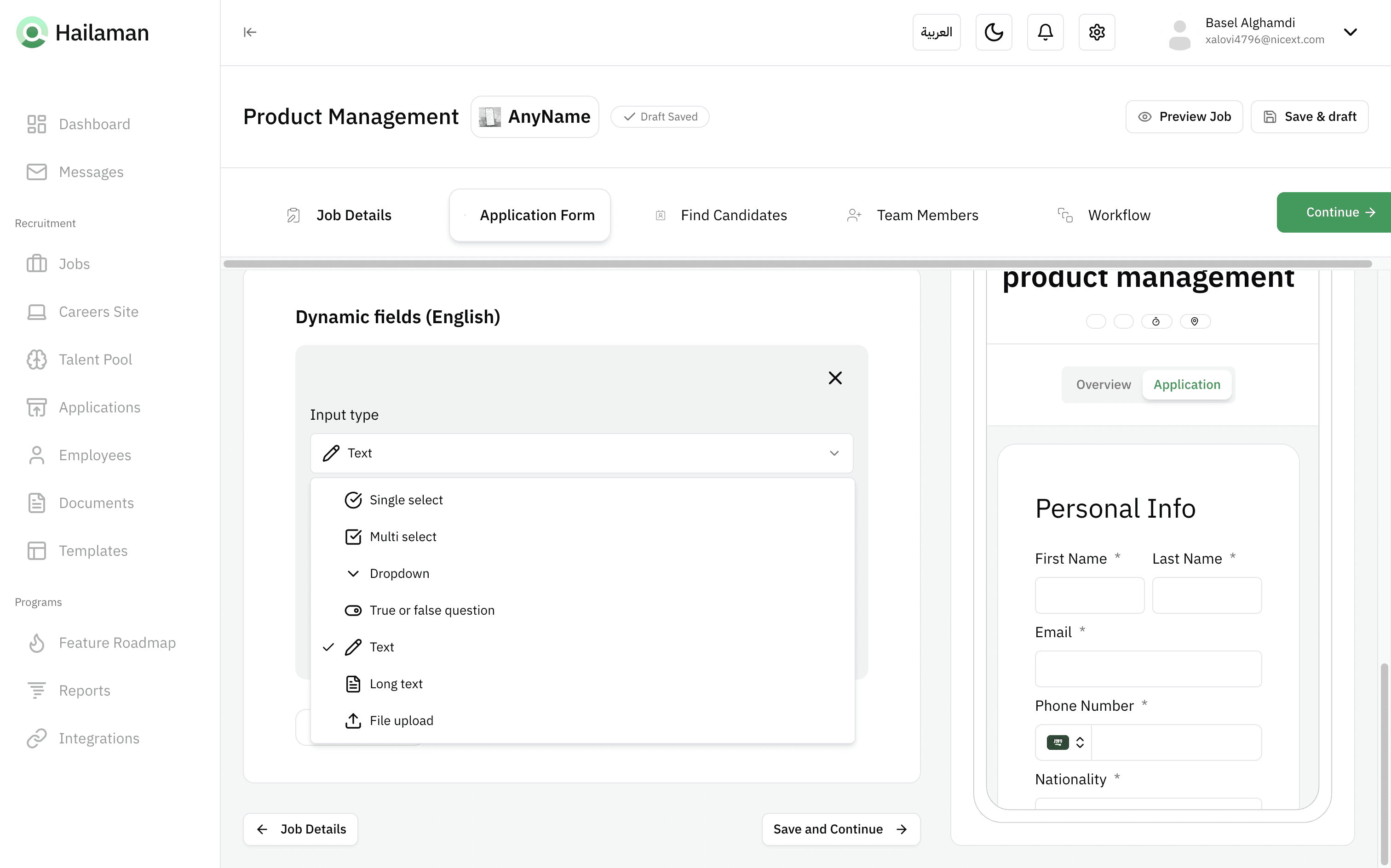
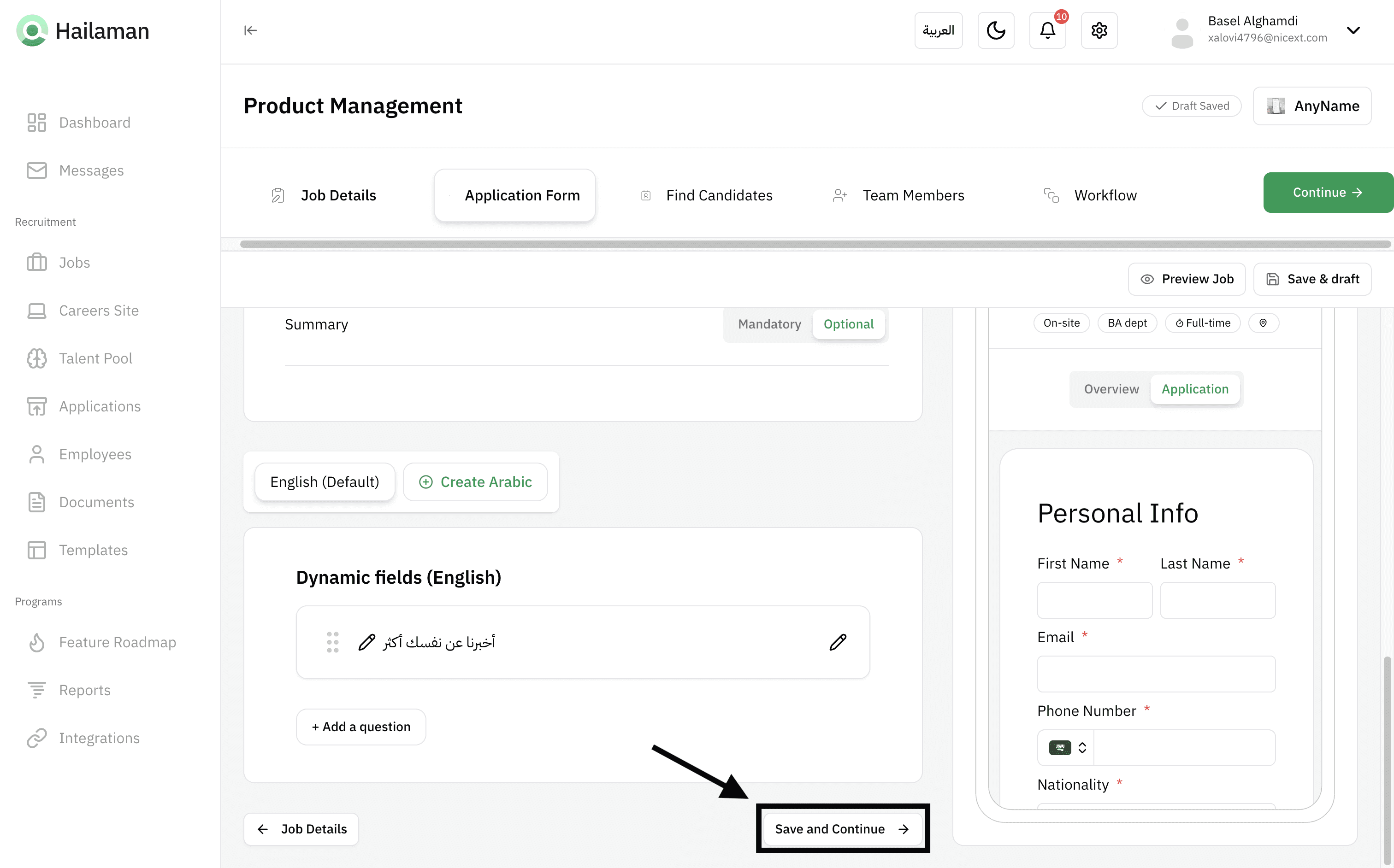
At the bottom, you can add new questions and choose the question type, whether it’s a text question, a true/false question, or many other options.
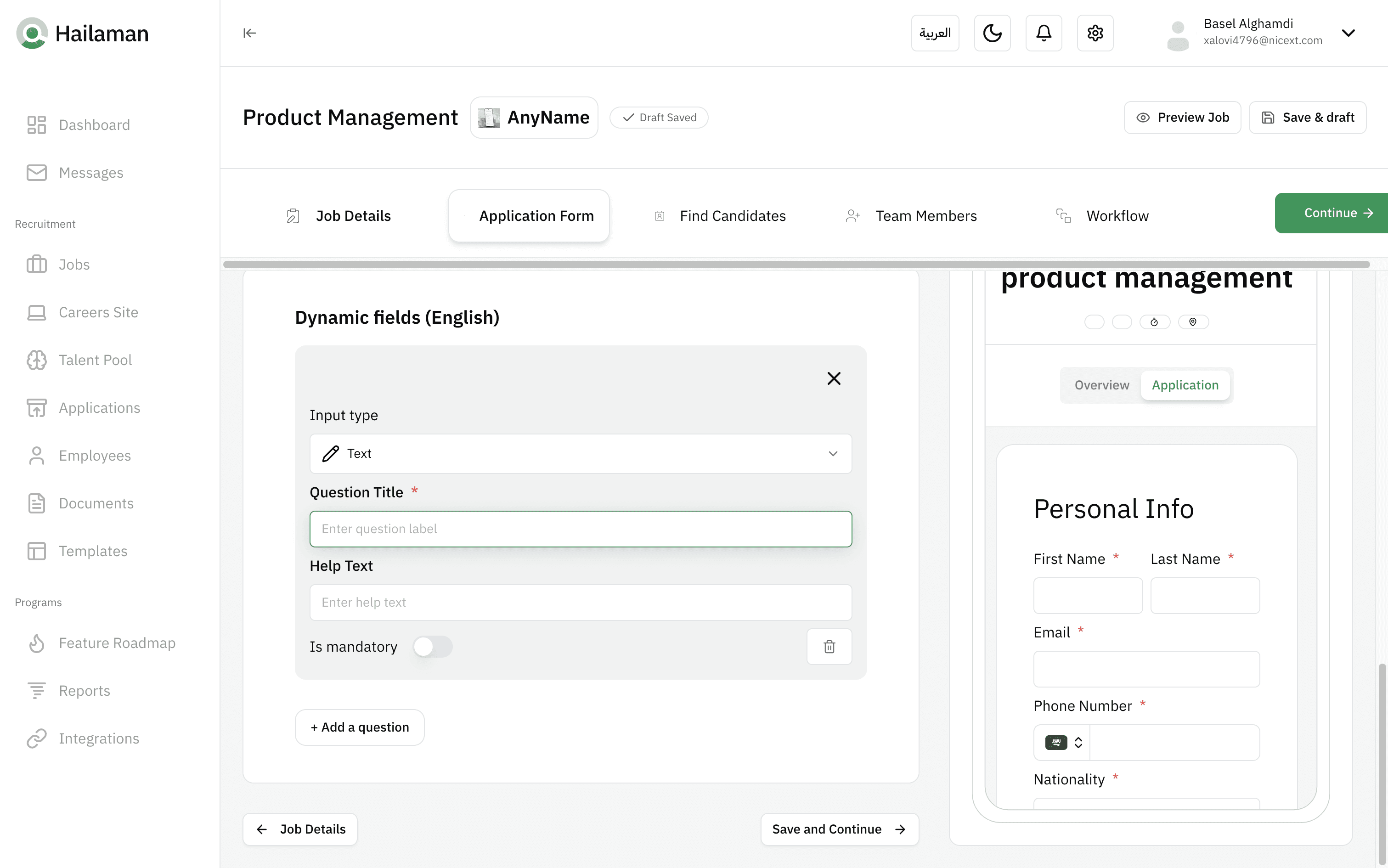
Then click on “Save and Continue” at the bottom, or on “Continue” at the top to proceed to the next section.
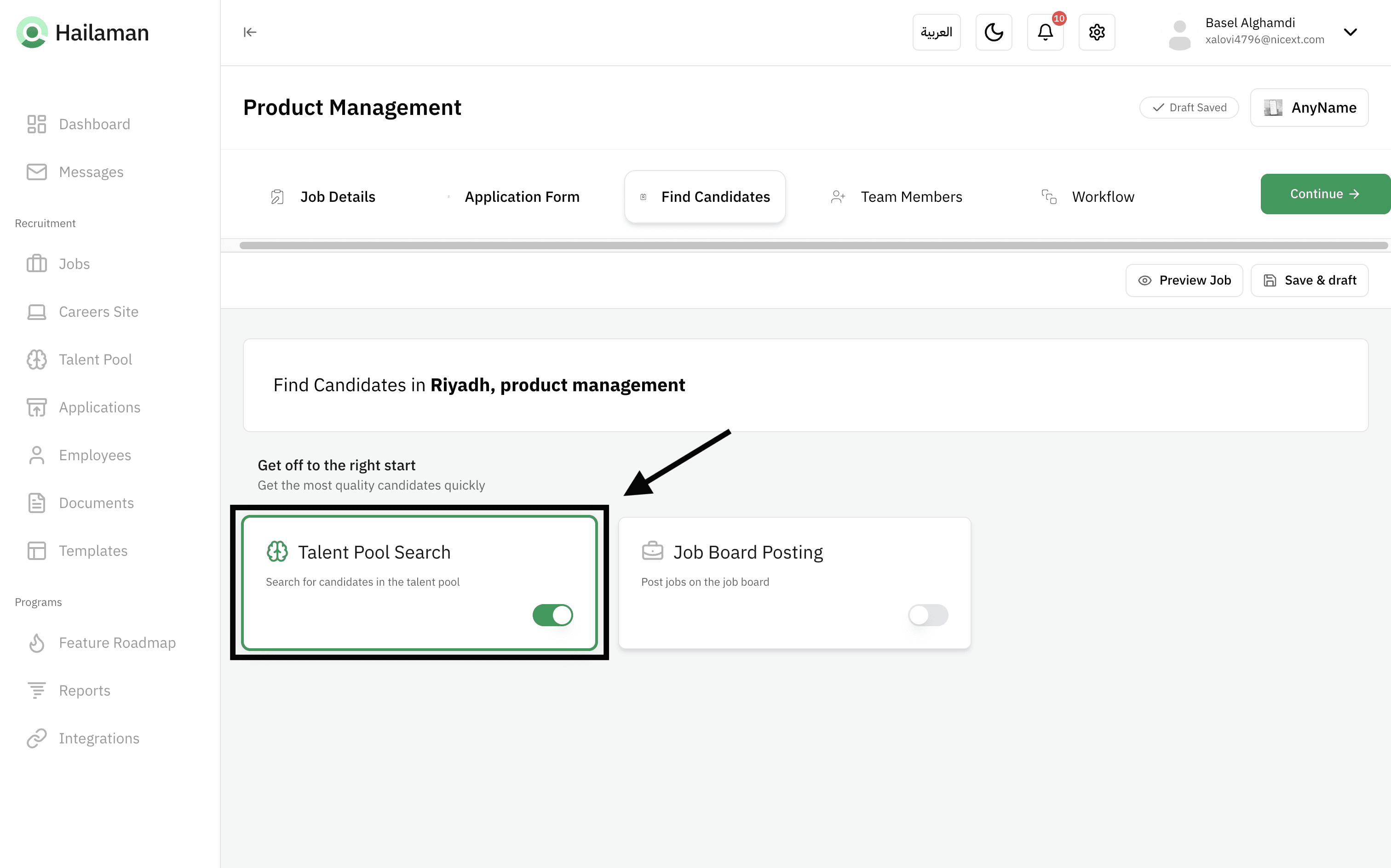
On the “Find Candidates” page, you can publish your job on the Hailaman Talent Page by clicking on “Talent Pool Search”.
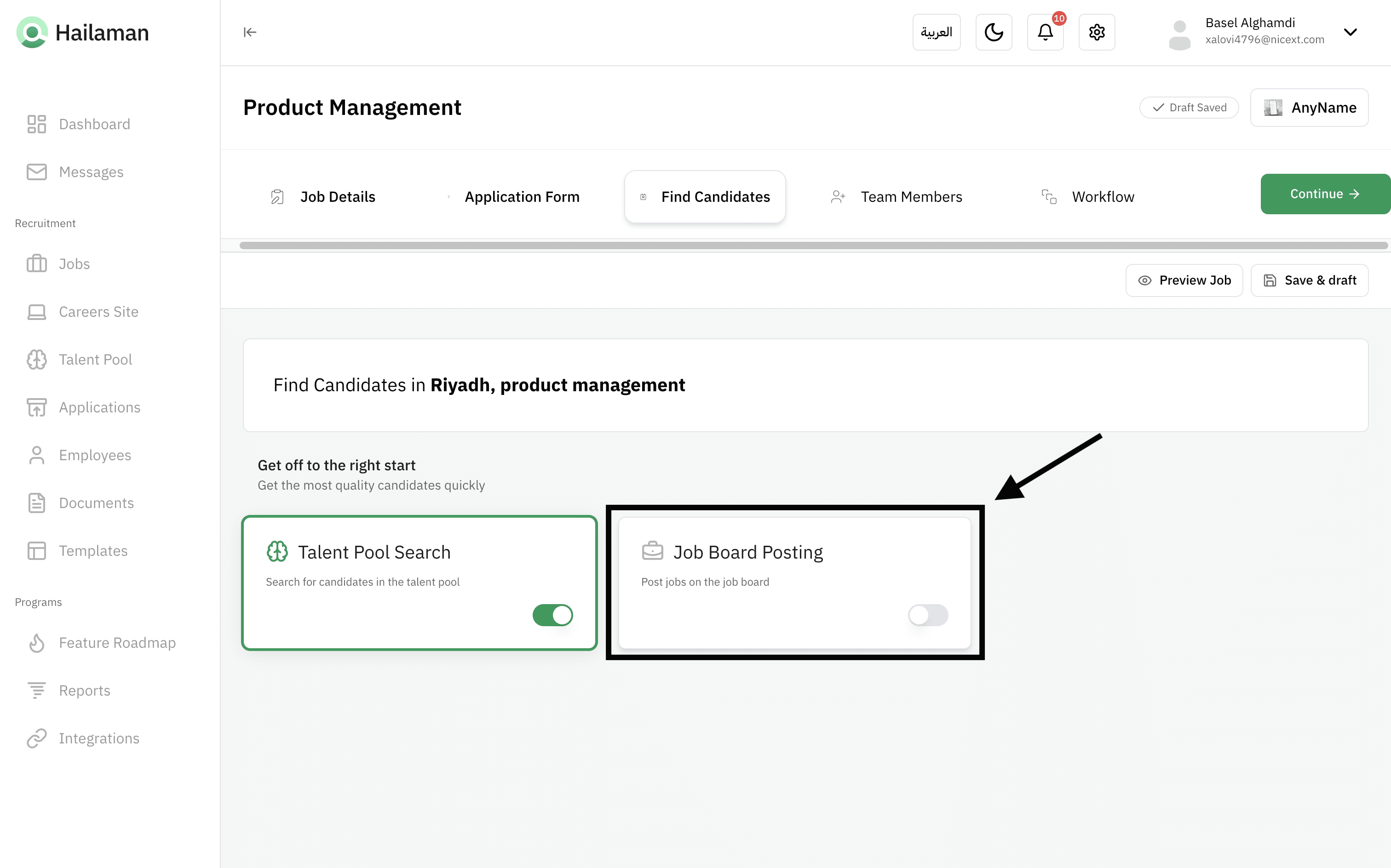
You can also publish it on the job board by clicking on “Job Board Posting”, which allows you to publish the job across a variety of recruitment platforms (e.g., LinkedIn, Talent.com, and many more).
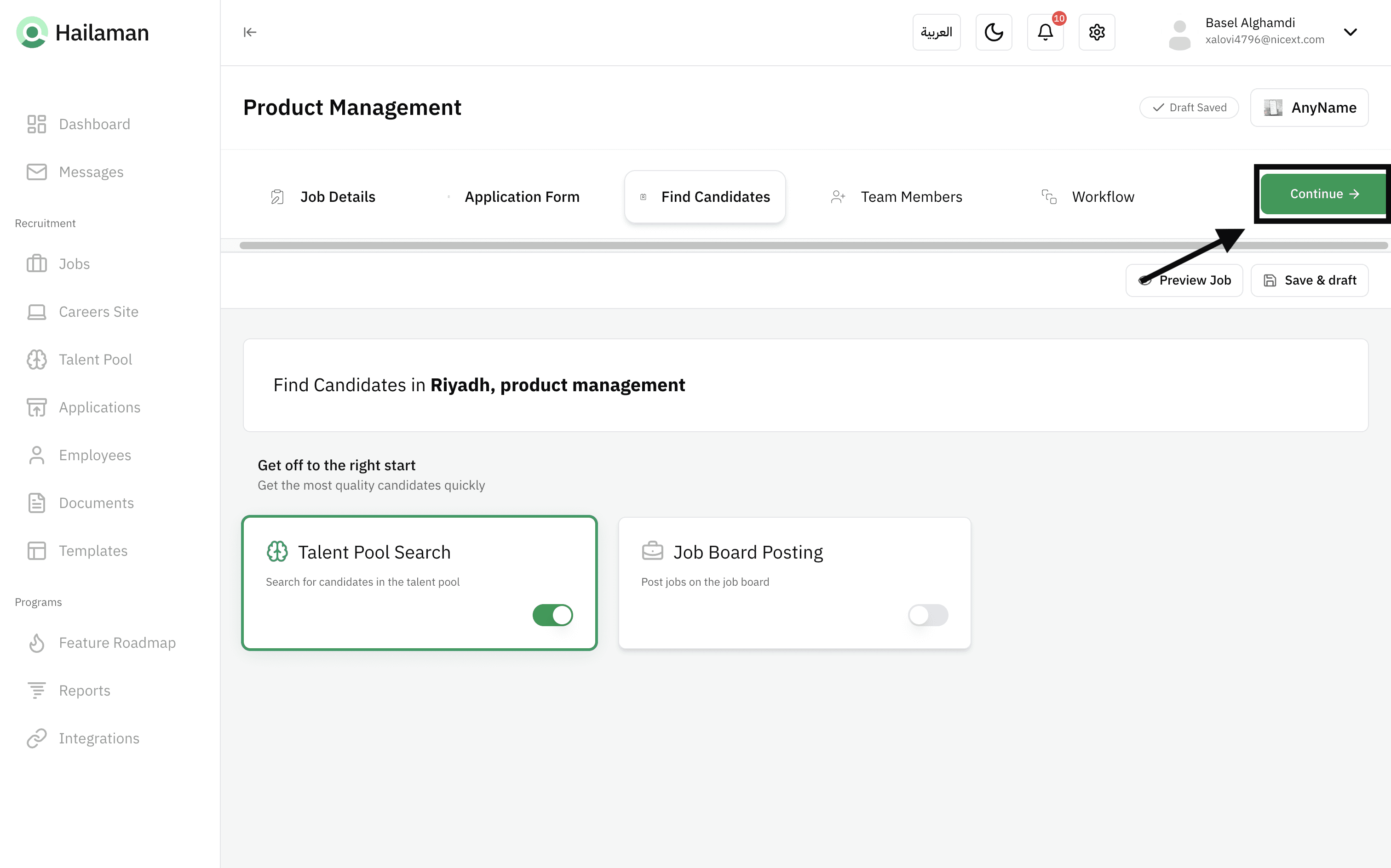
Then you can click on “Continue” to proceed to the next section.
In the “Team Members” section, you will find all the employees you can assign to this job.
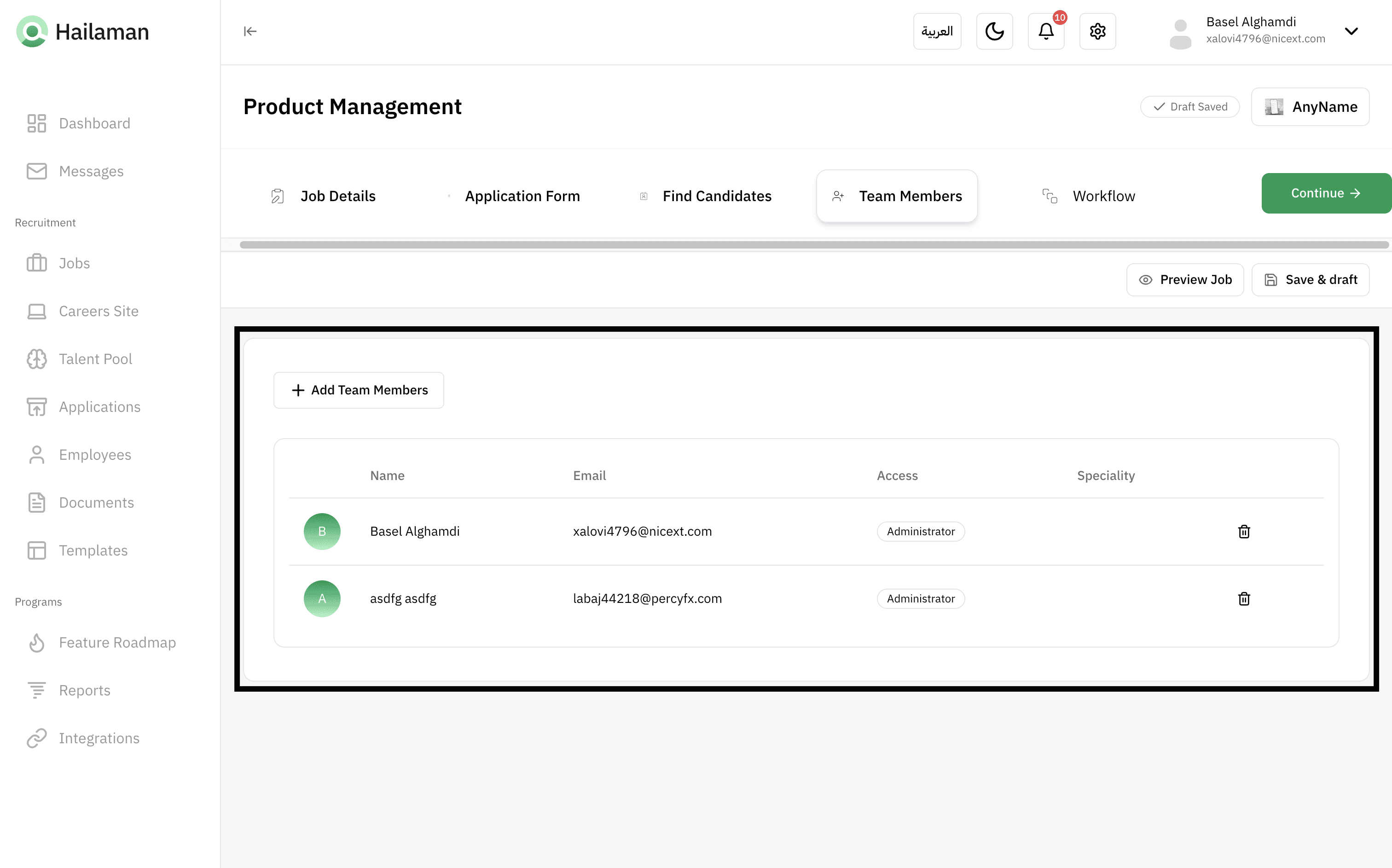
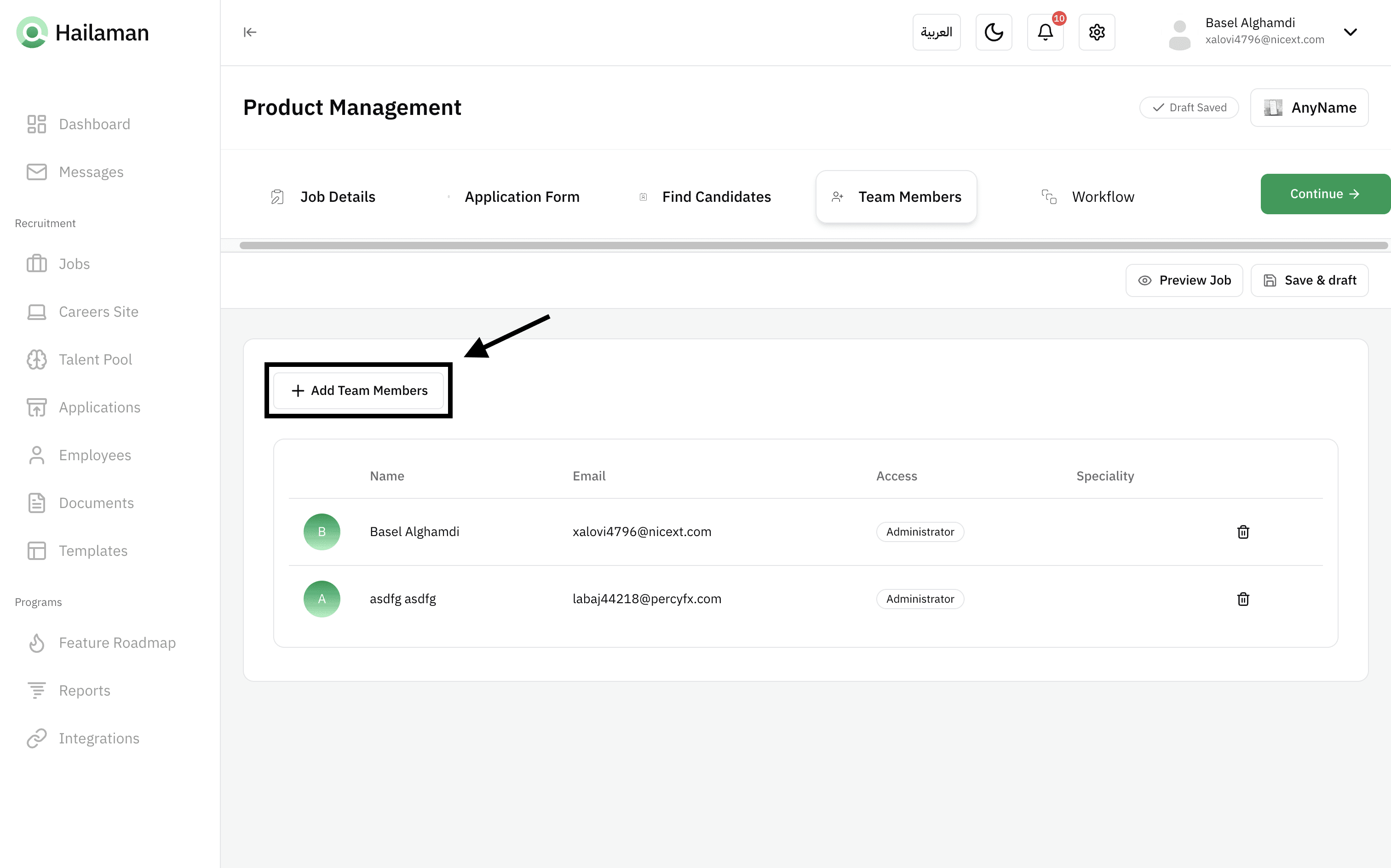
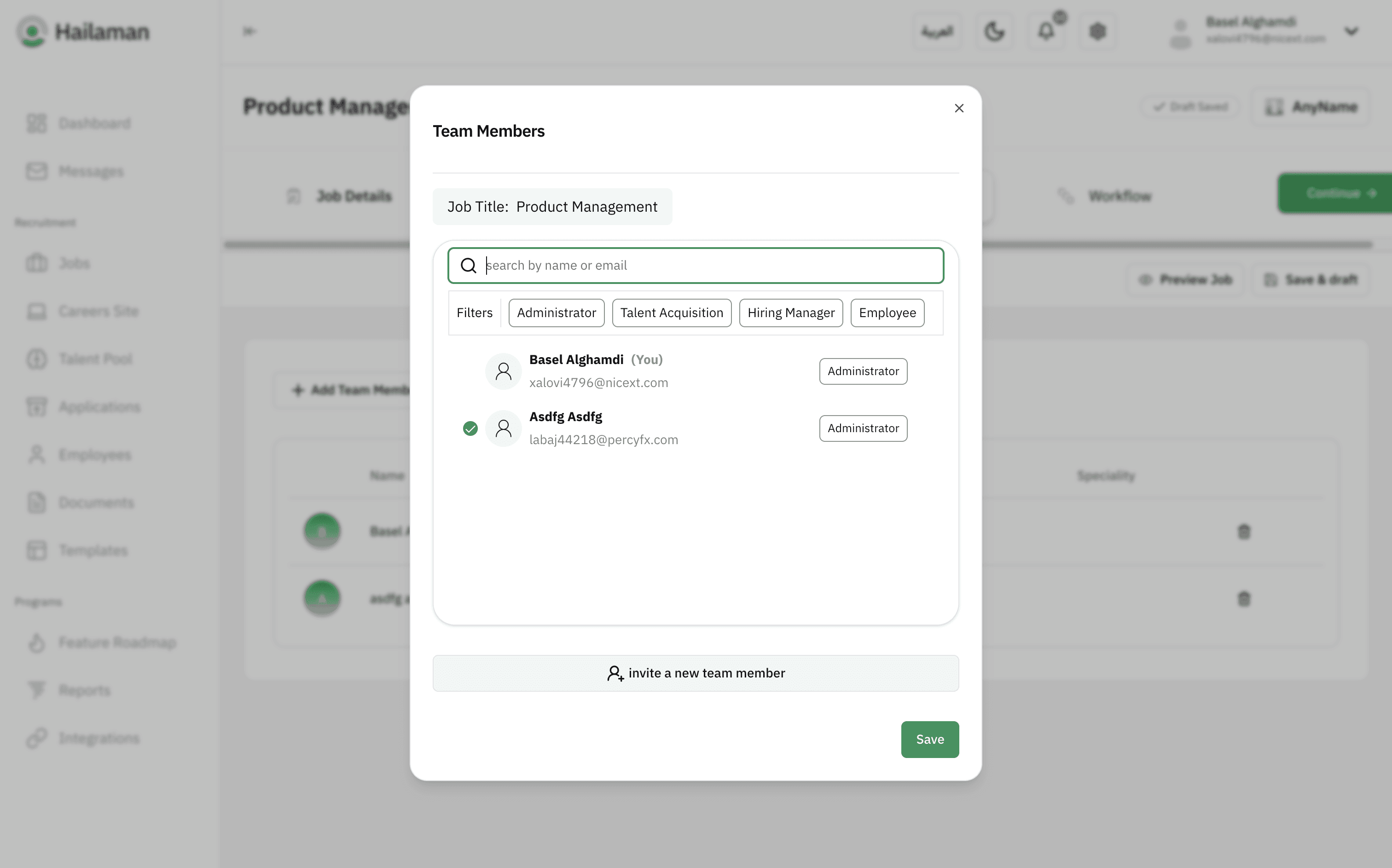
You can also add more employees as needed.
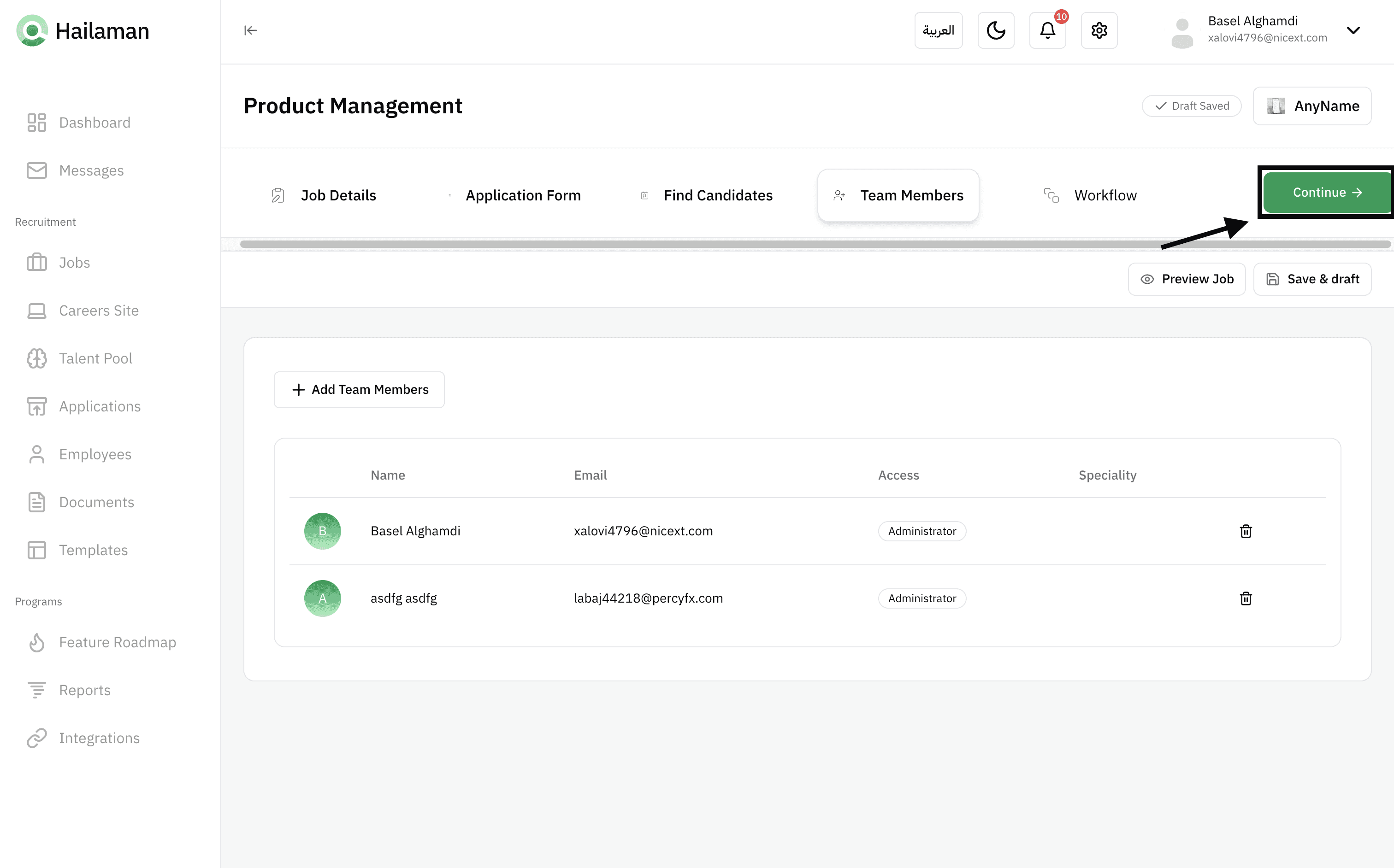
Then you can click on “Continue” to proceed to the next section.
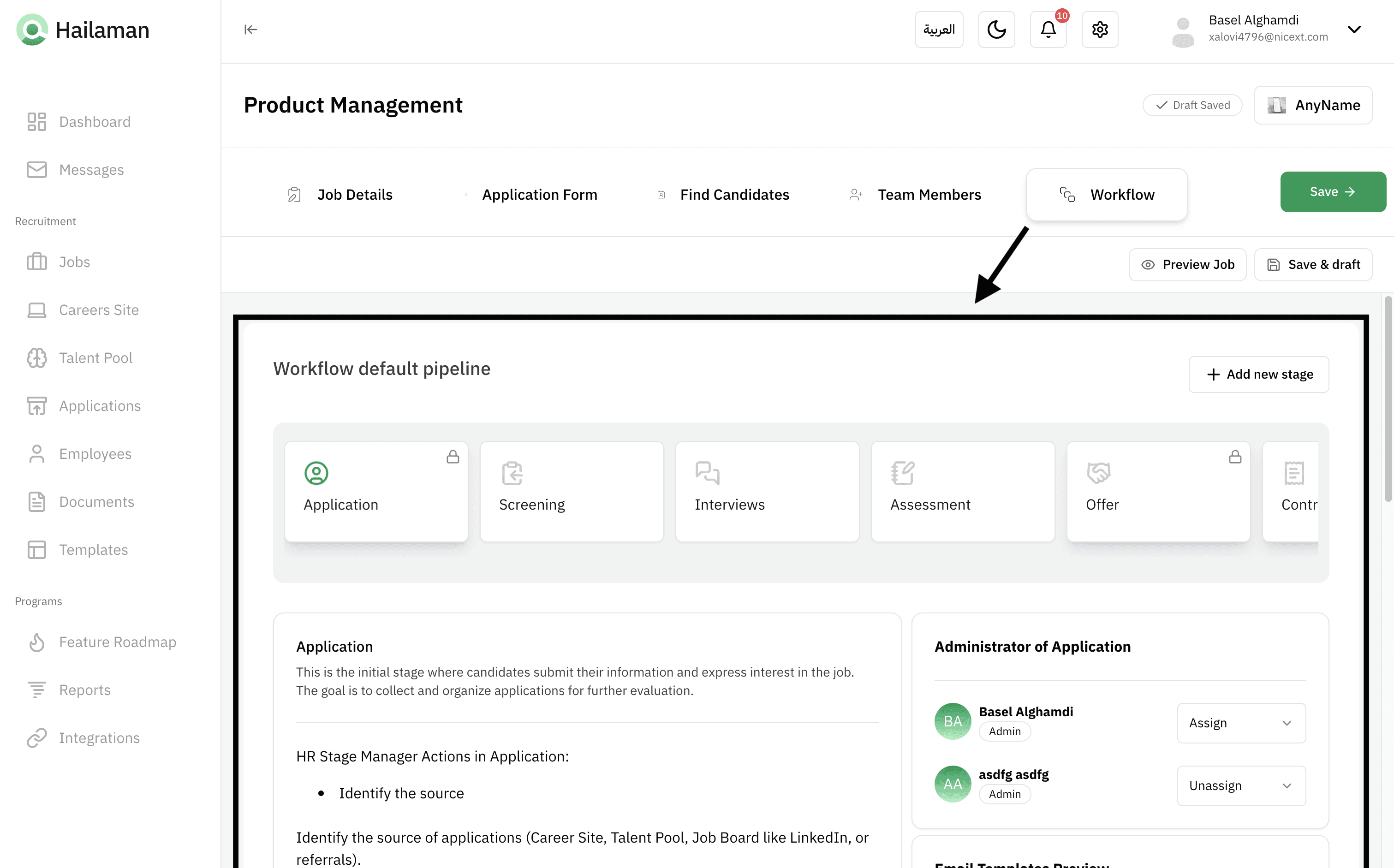
In the “Workflow” section, you can view the workflow of each stage of the job application process and set it up in the way that best suits your needs.
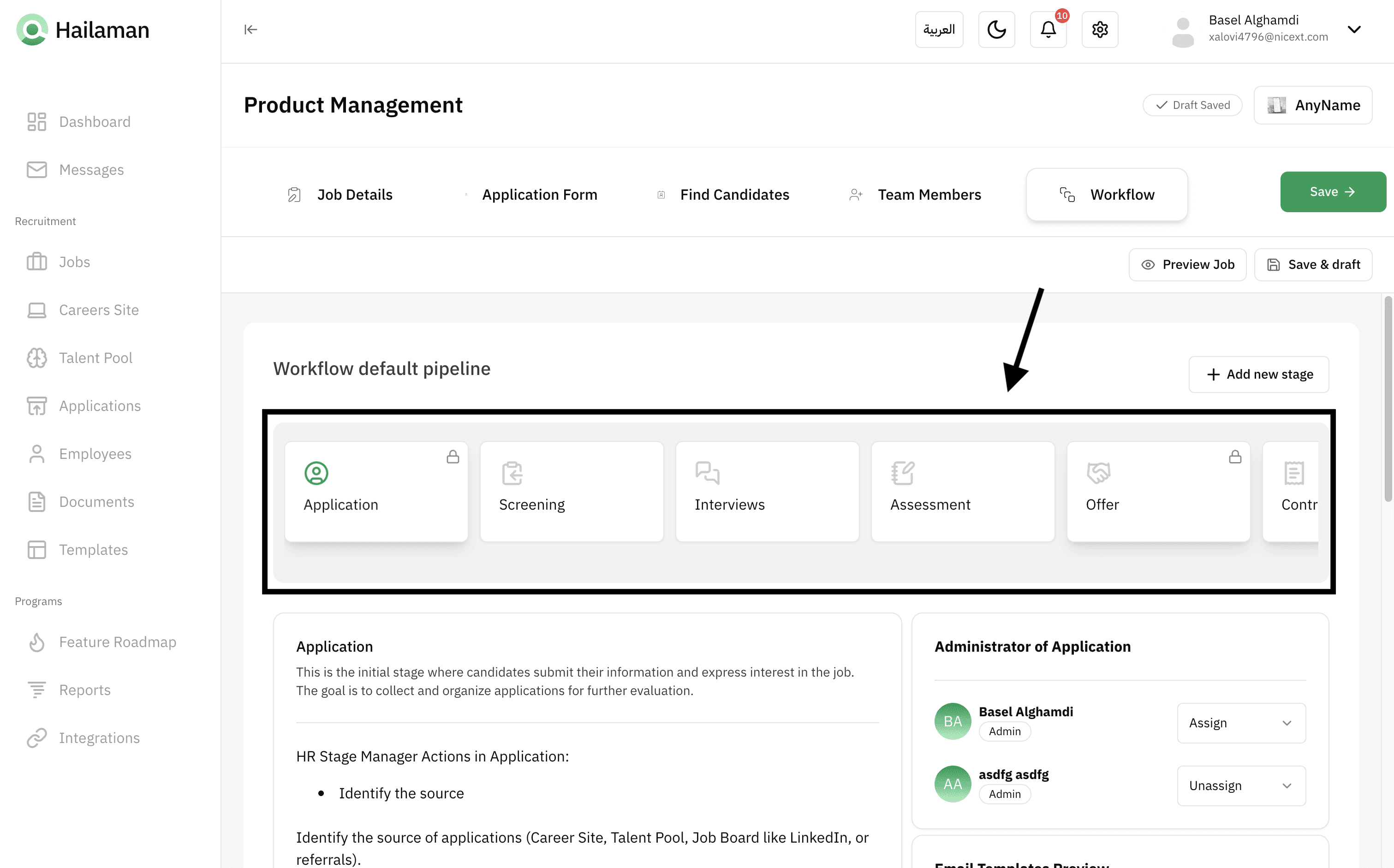
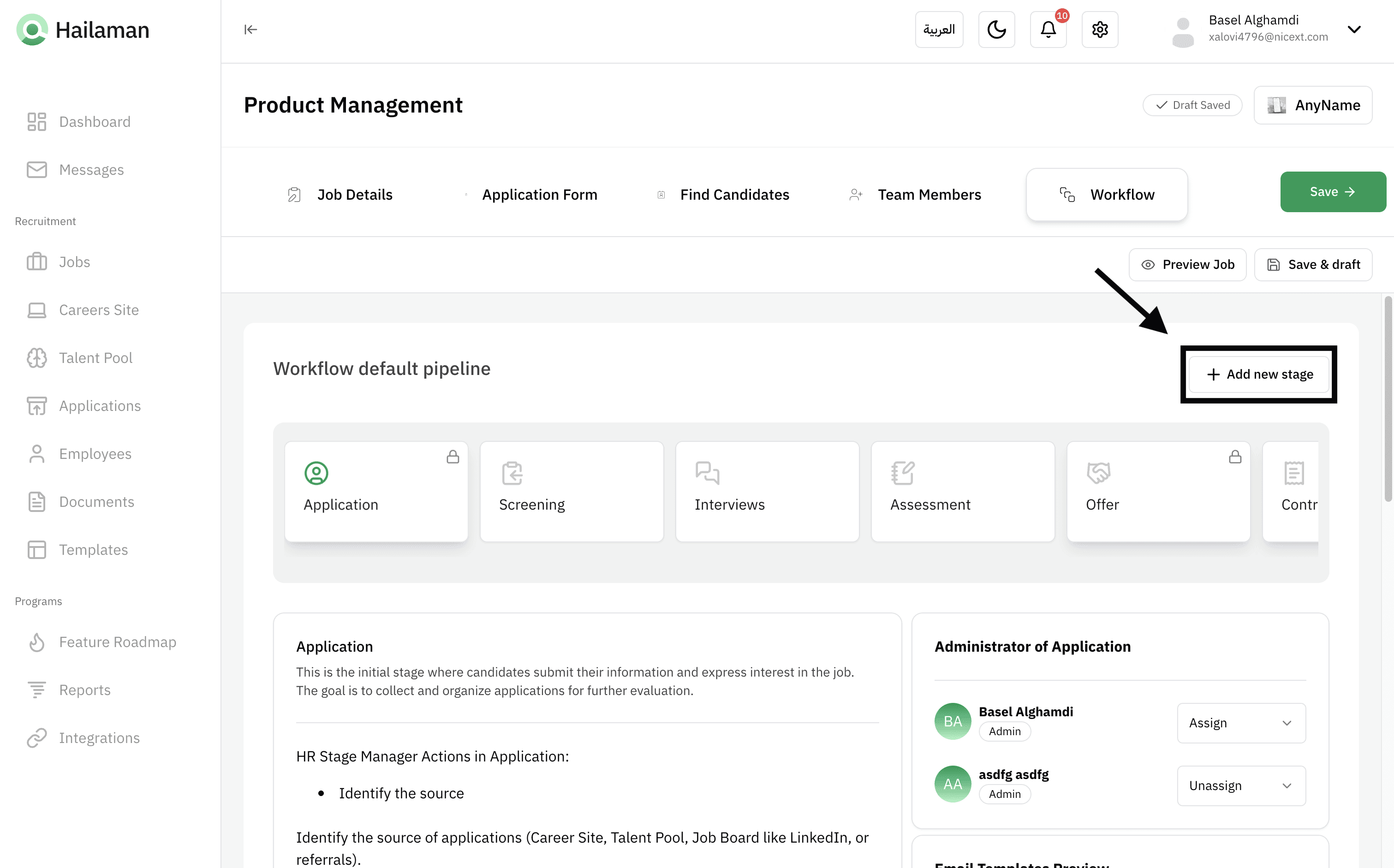
Here, all the stages are displayed, and by clicking on “Add New Stage”, you can add more stages and arrange them as you wish.
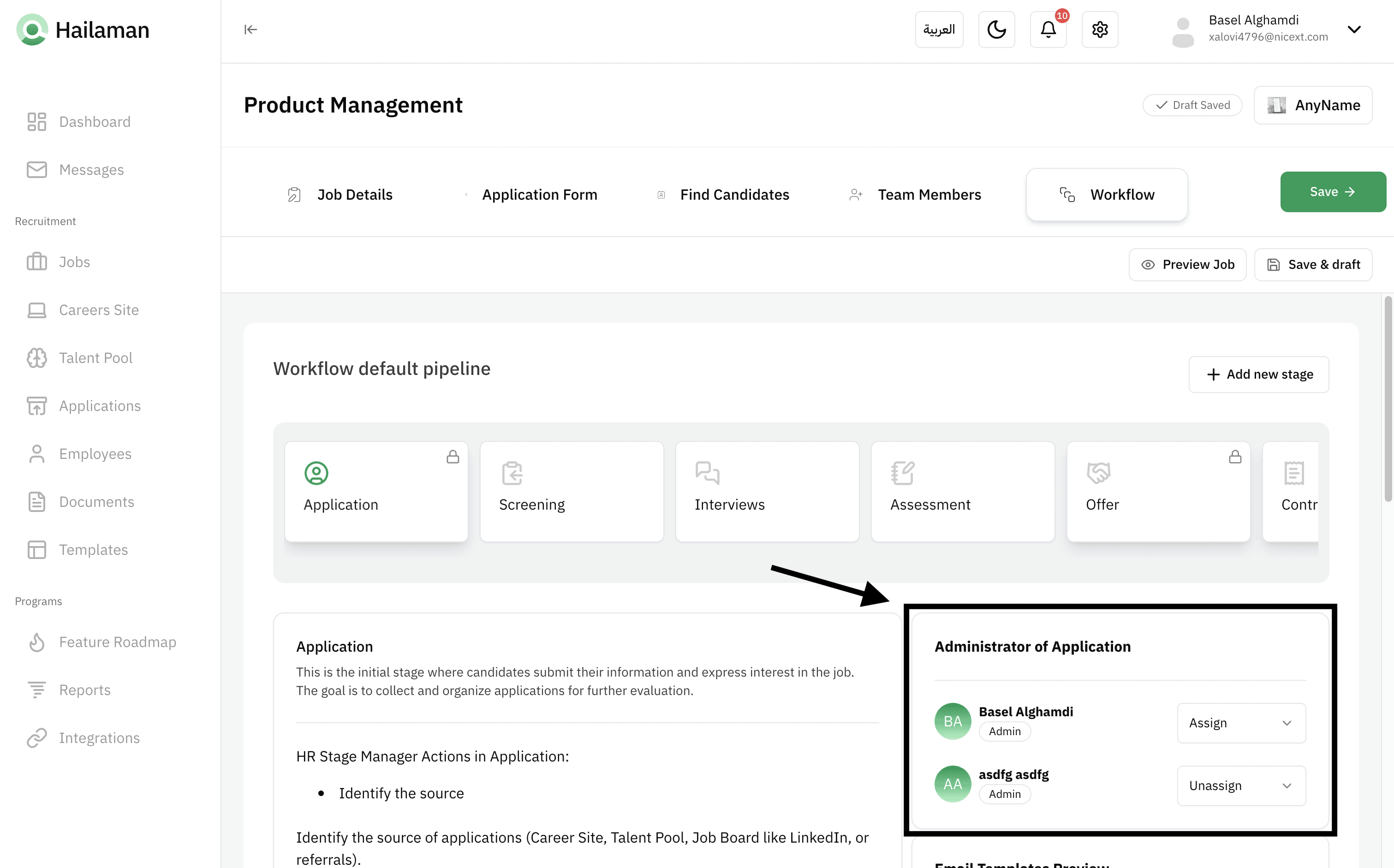
From here, you can assign an employee to each stage, where the applicant will appear to them once they reach the stage assigned to them.
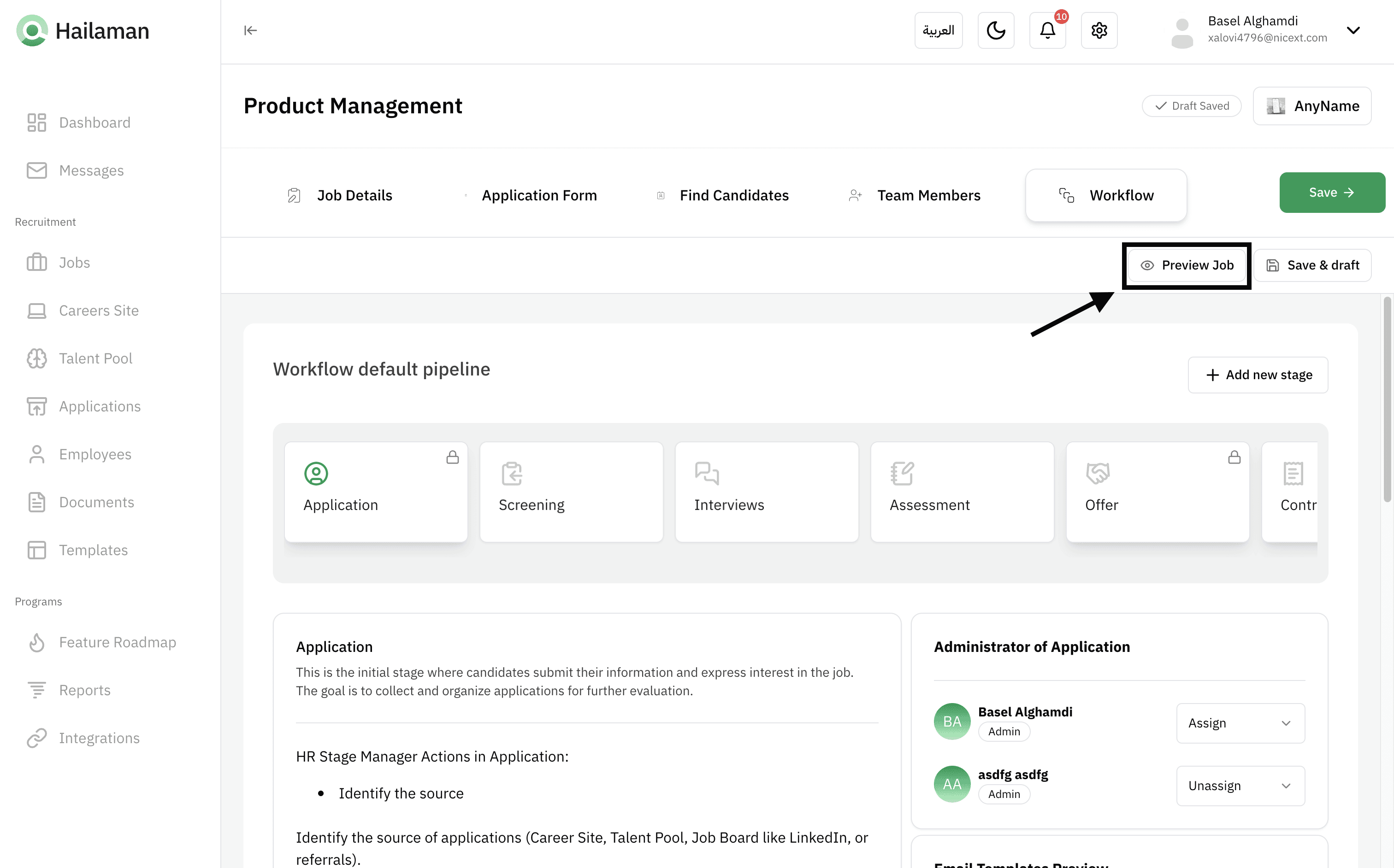
Before publishing the job, you can preview it by clicking on “Preview Job” to see how it will appear to the applicant.
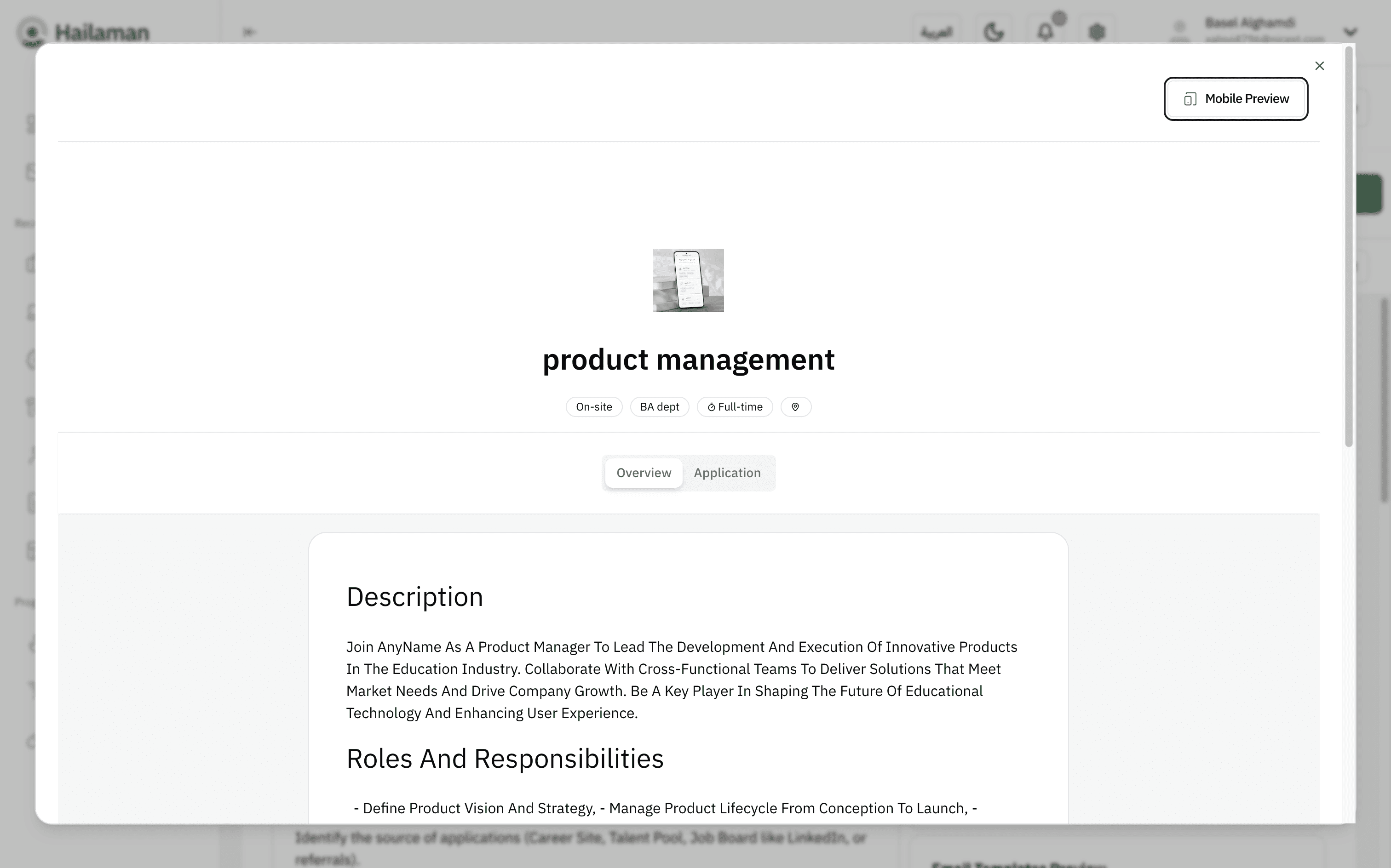
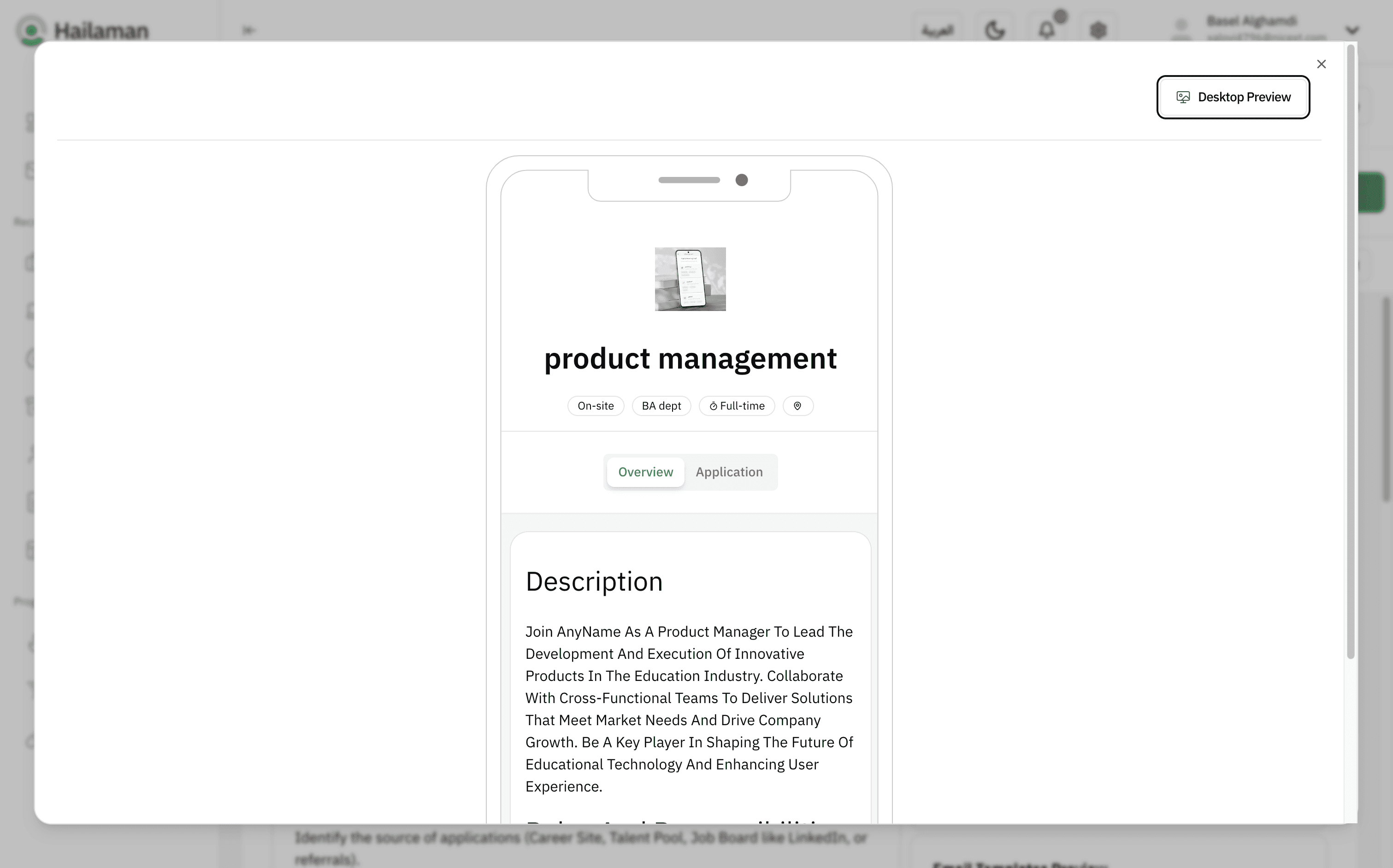
You can also preview the job on mobile by clicking on “Mobile Preview”.
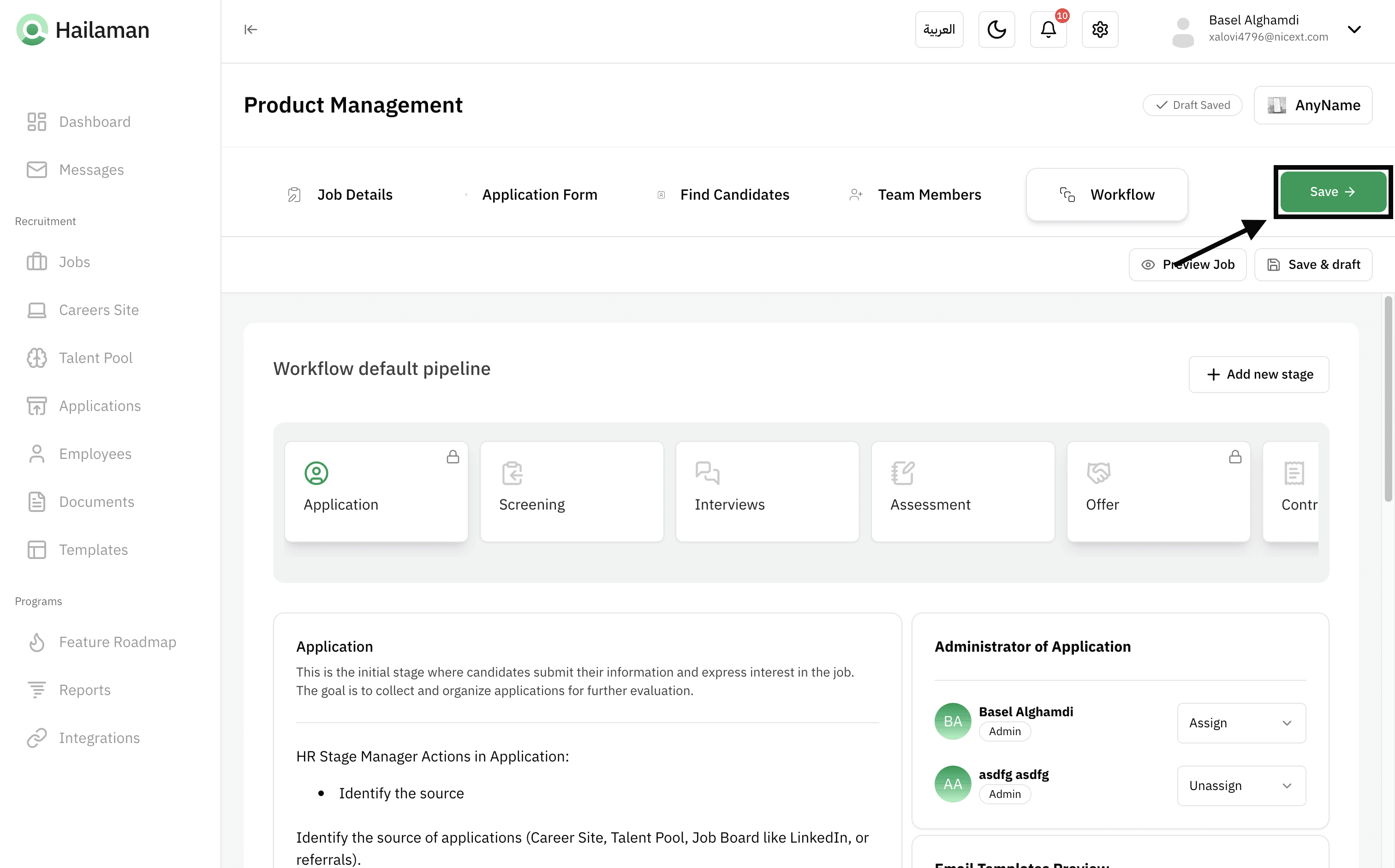
Once finished, click on “Save” to save all the options.
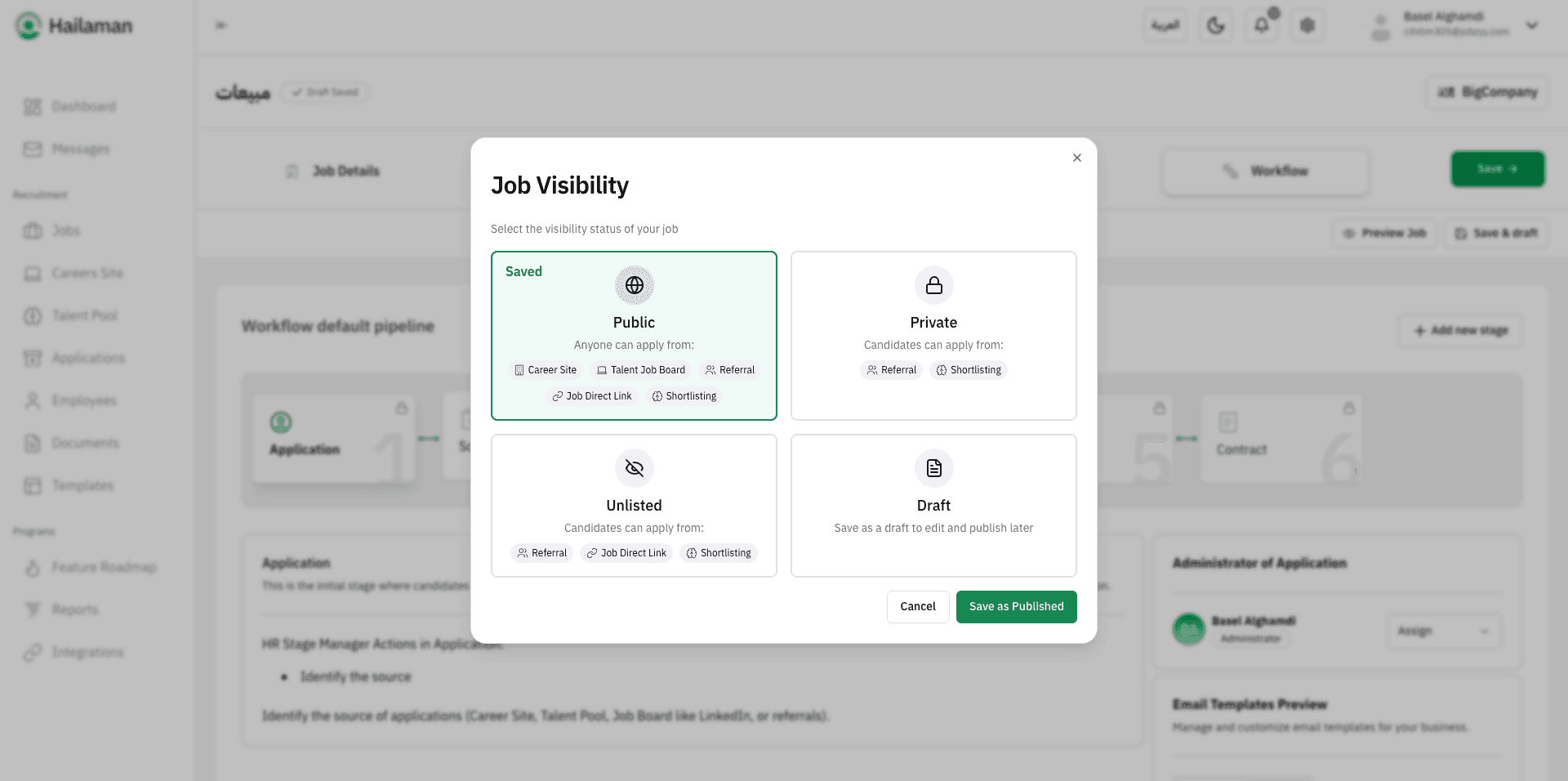
This interface will appear to set the job status, whether you want to publish it, keep it as a draft, make it unlisted or private.
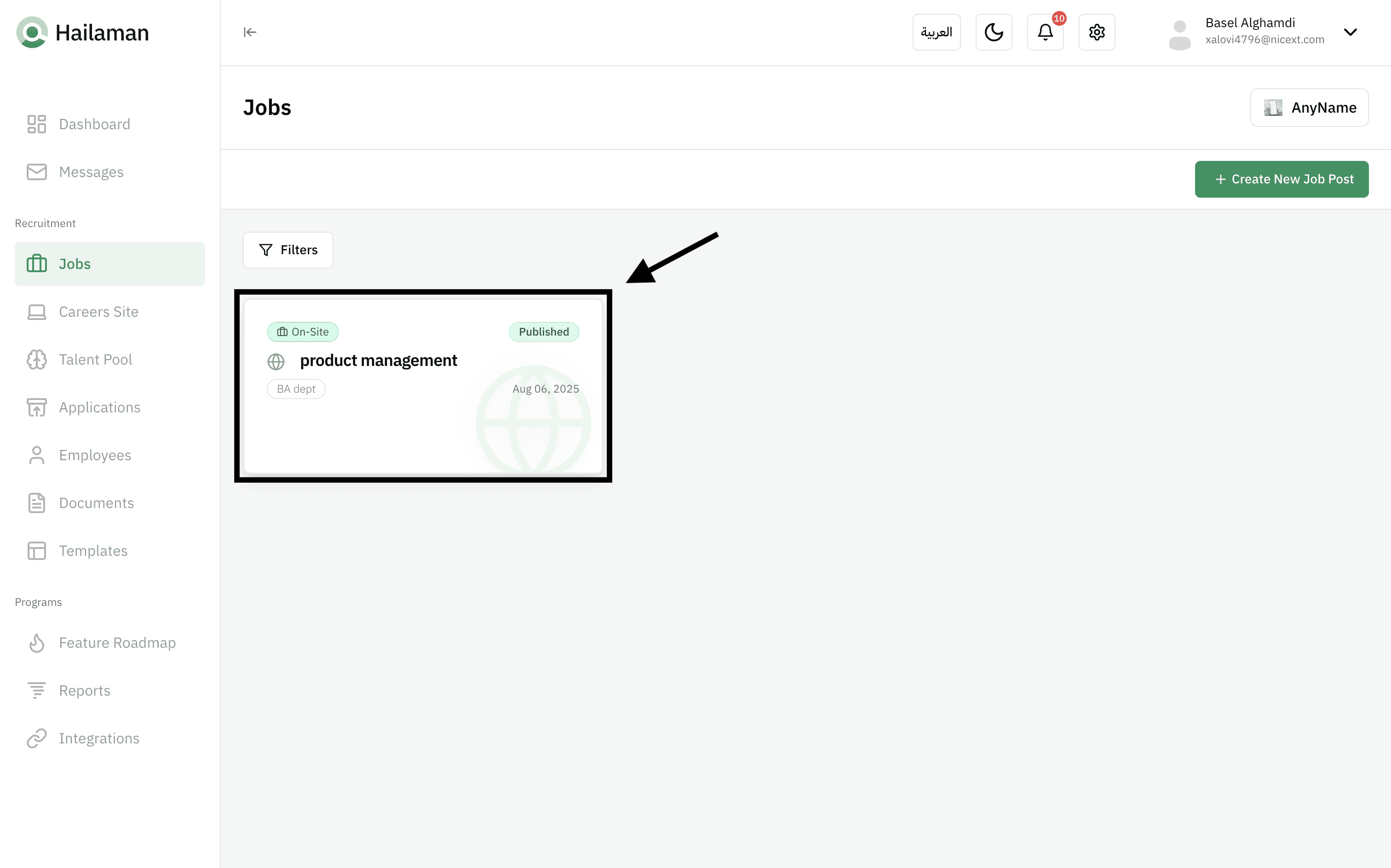
After confirming and saving, the job will appear in the Jobs section, and you can edit it at any time.
Join Us Hailaman ATS
Any other questions? Get in touch