Employees
Add New Employee
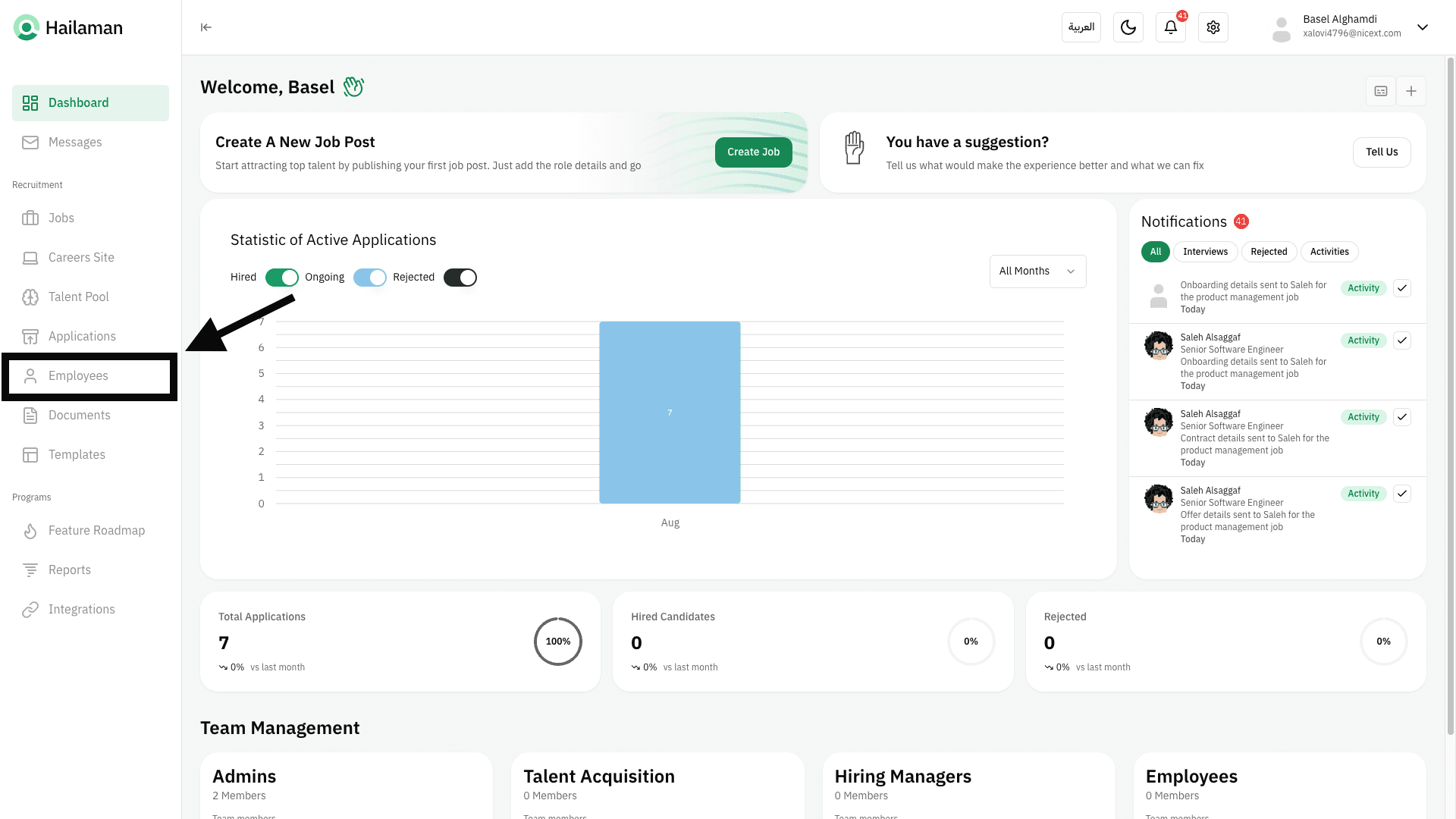
Click on “Employees” from the sidebar.
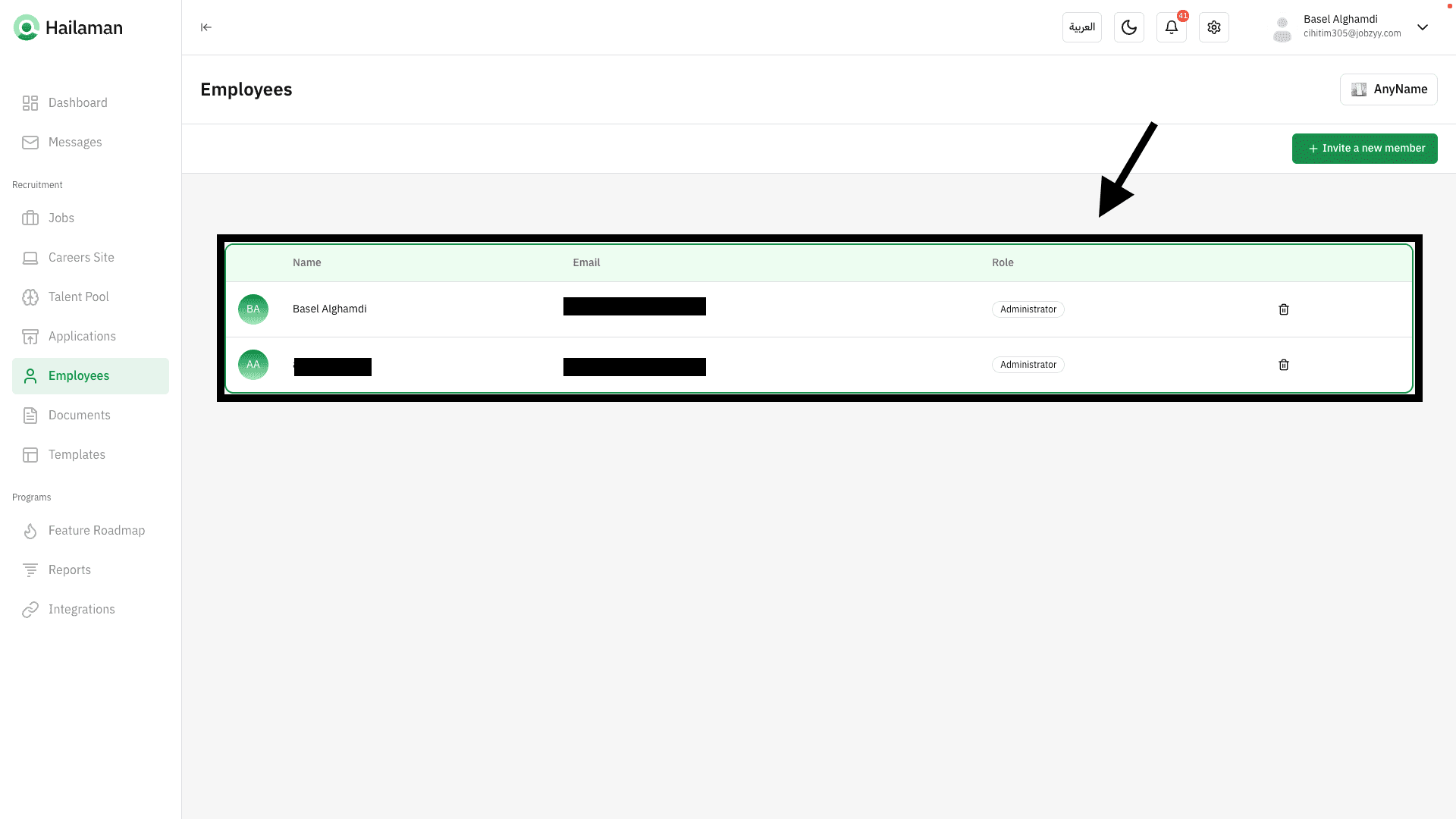
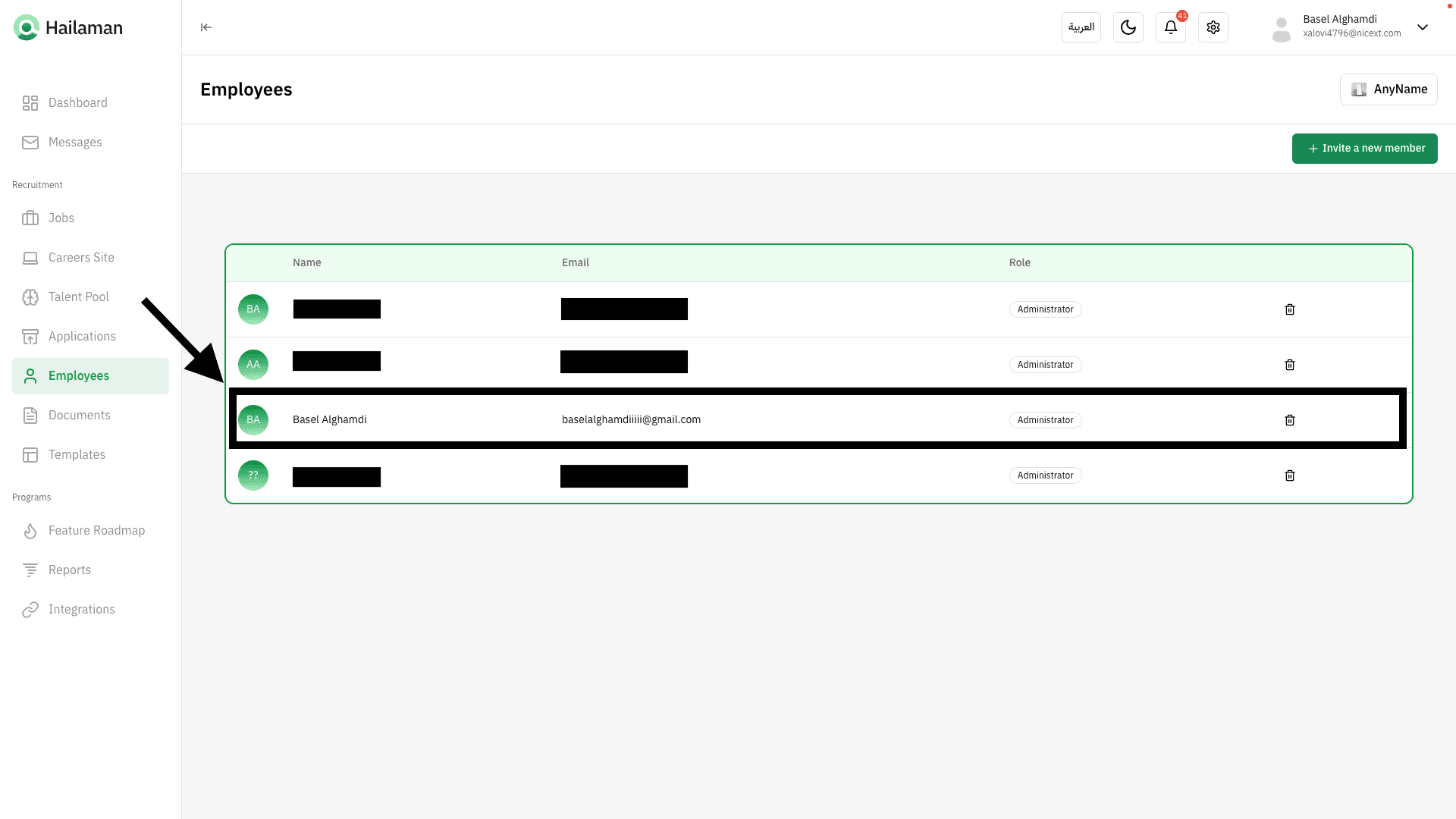
You will see the list of current employees here.
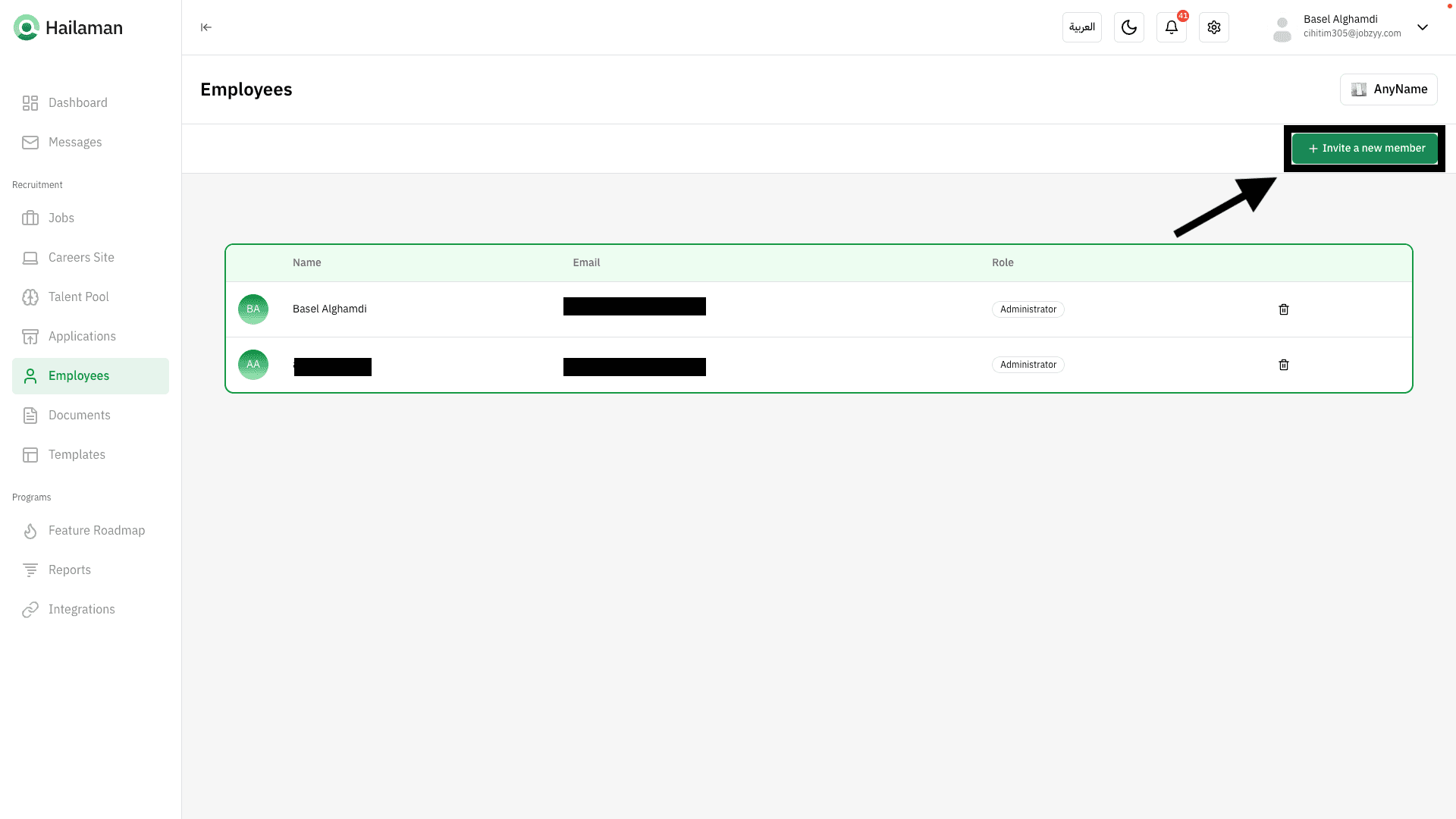
You can add a new employee by clicking on “Invite New Member” at the top.
Two fields will appear for entering the employee’s email address and selecting their permission type.
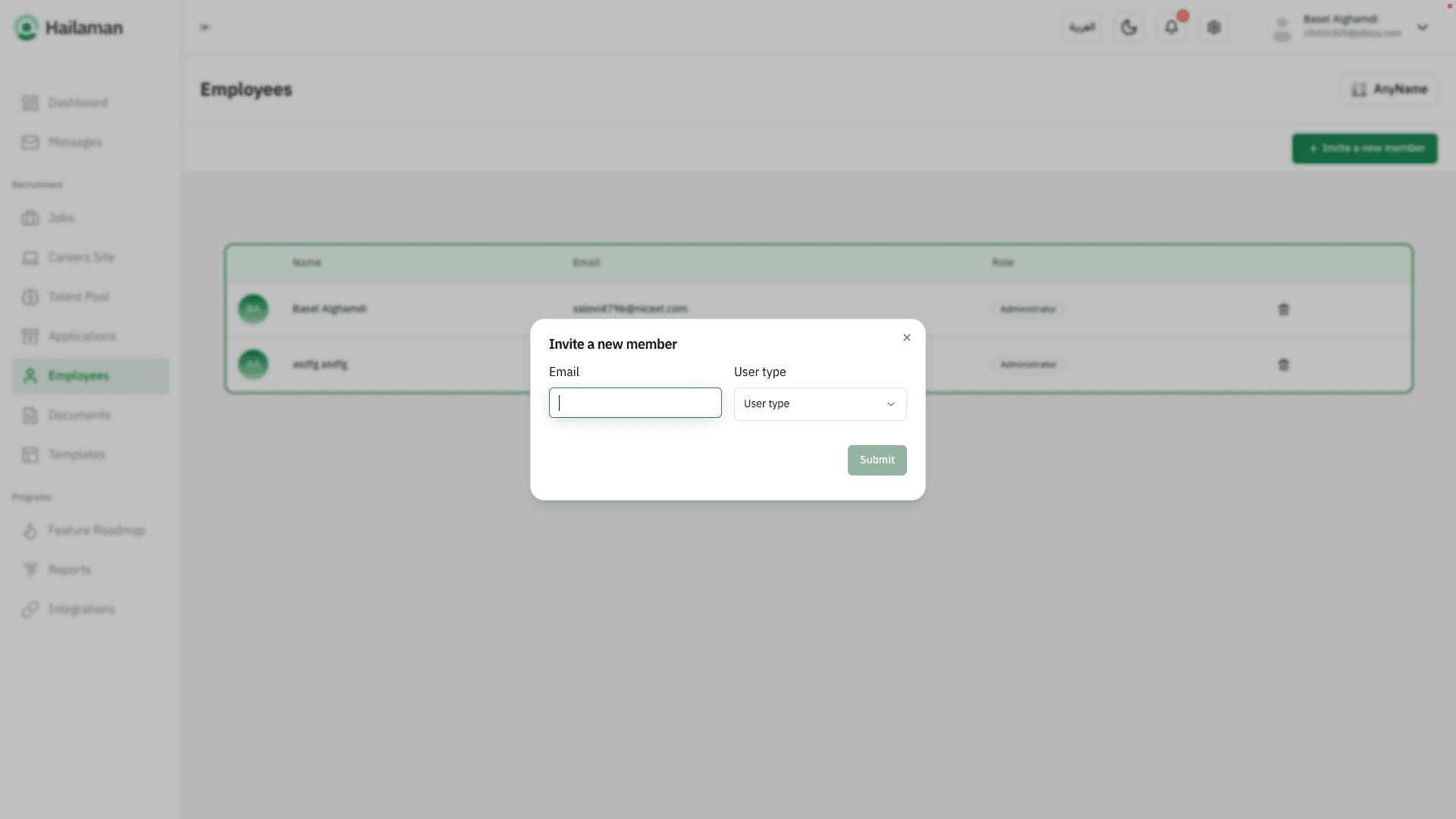
From the dropdown menu, you can choose the employee’s permission type: “Admin”, “Talent Acquisition”, “Hiring Manager”, or “Employee”, each with its own specific access rights.
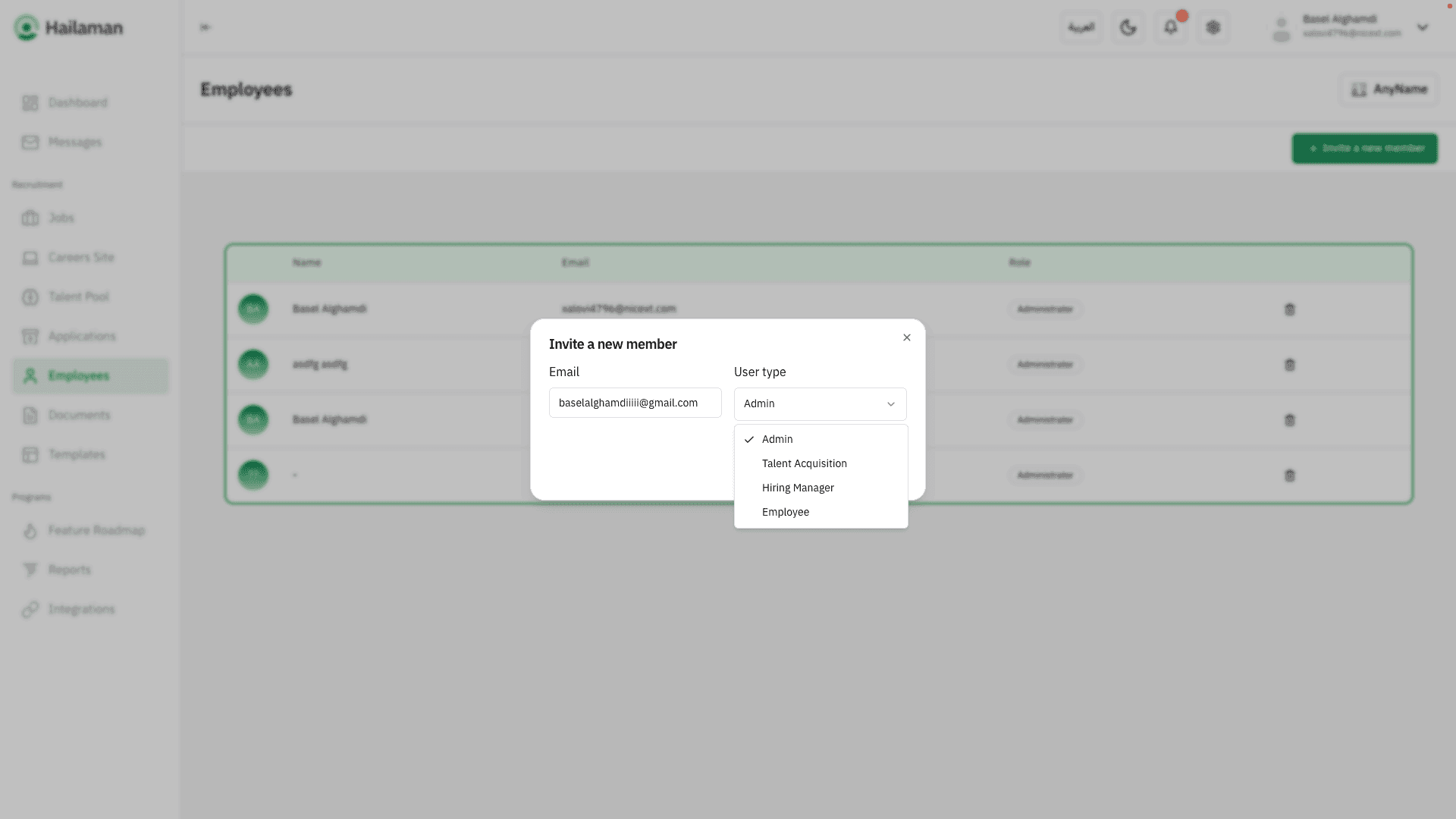
After completing all the details, you can send an invitation by clicking on “Send”.
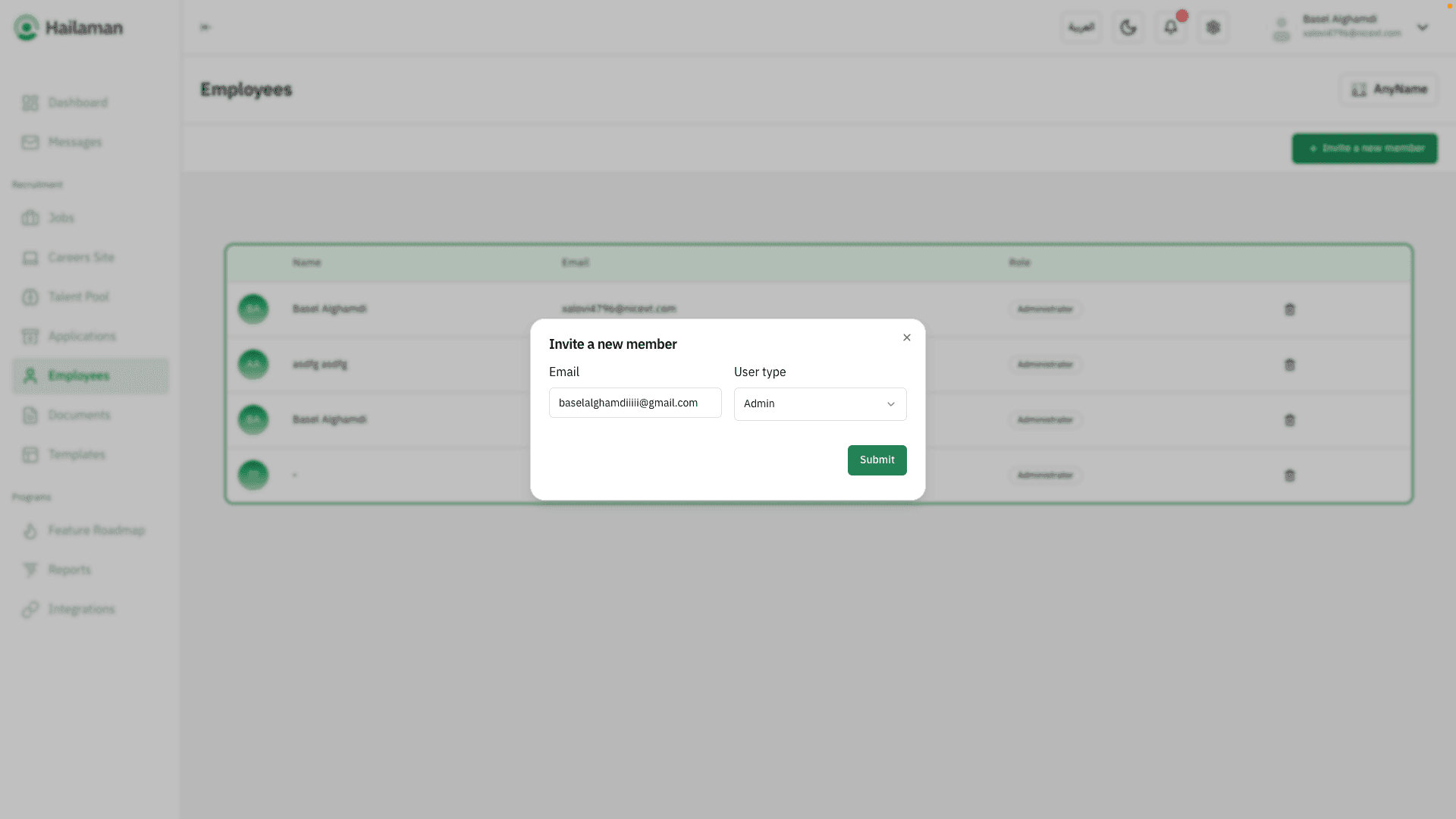
The employee will receive an email and can follow the instructions.
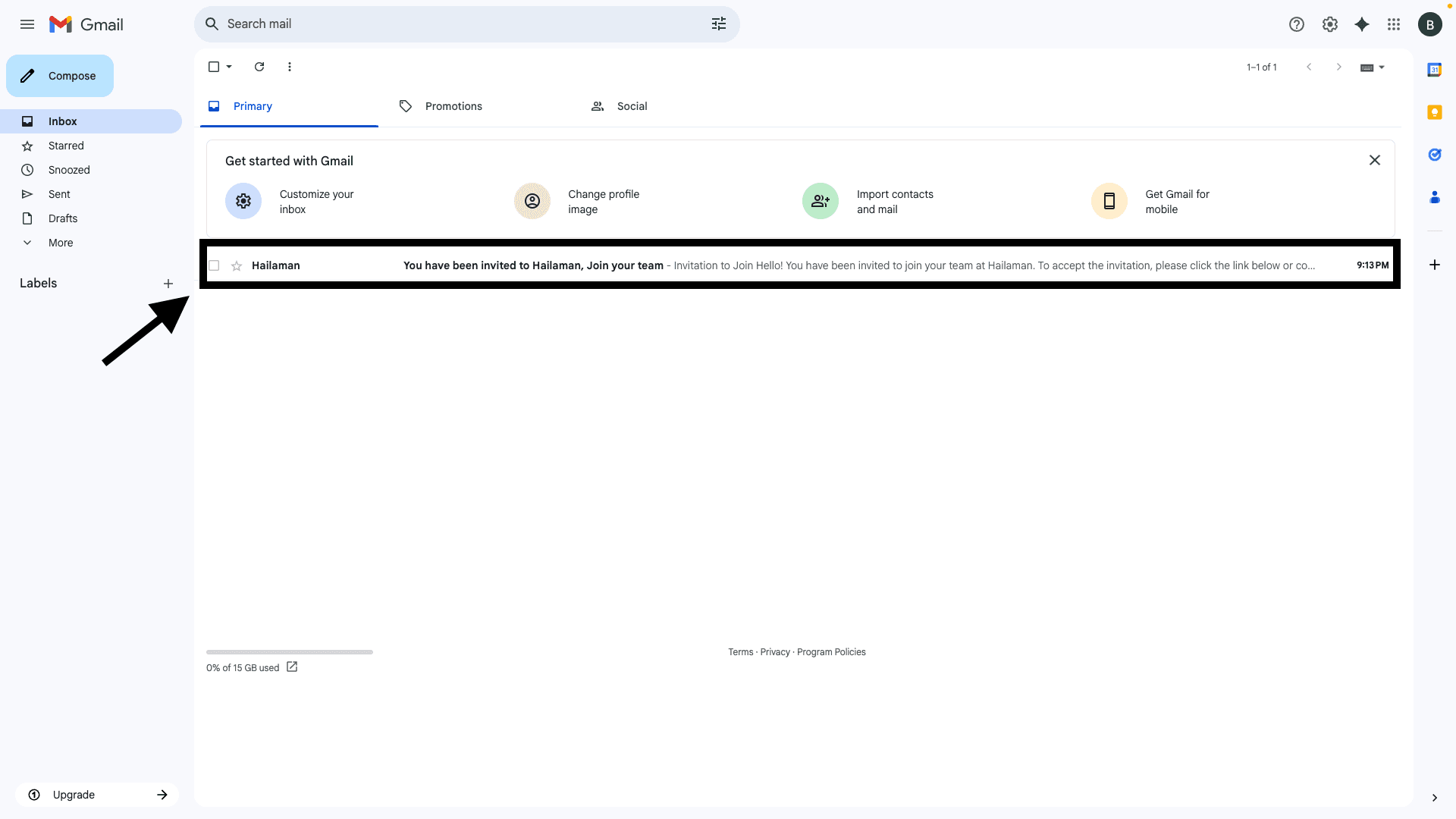
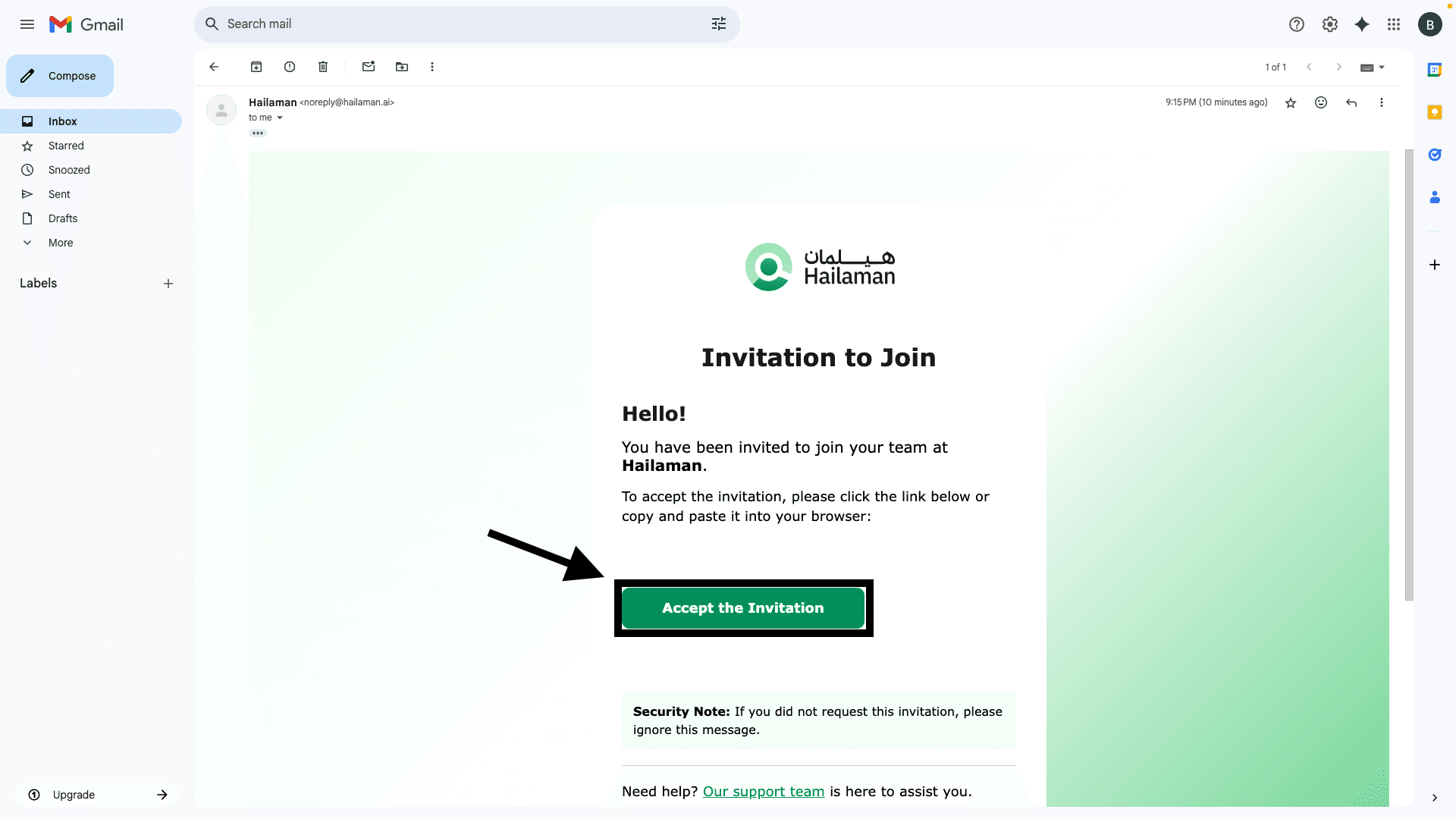
Here is the invitation message from the Hailaman system.
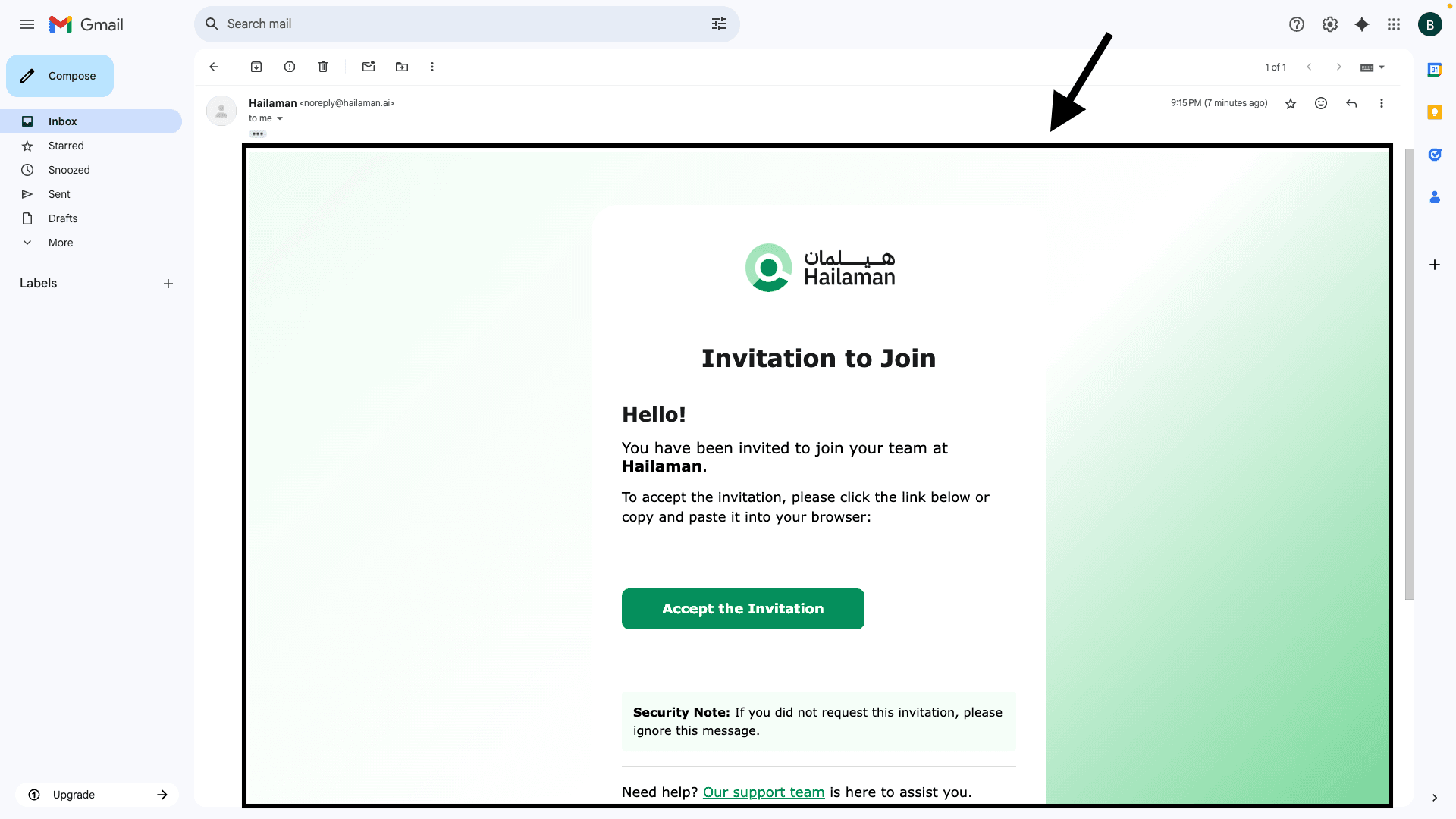
The employee can click on “Accept the Invitation”, which will take them to the account creation page.
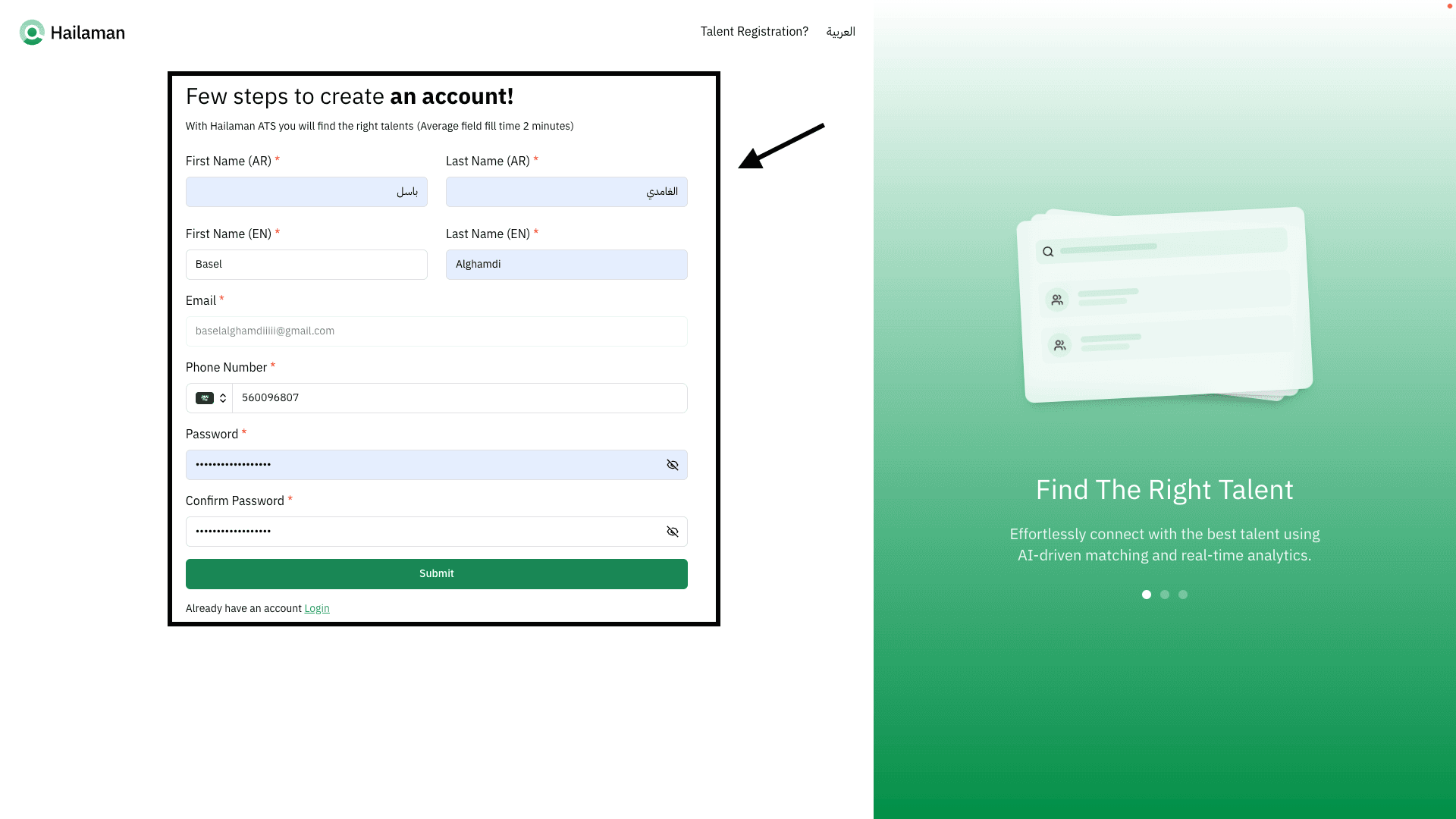
On the account creation page, the employee enters their account details to access the system.
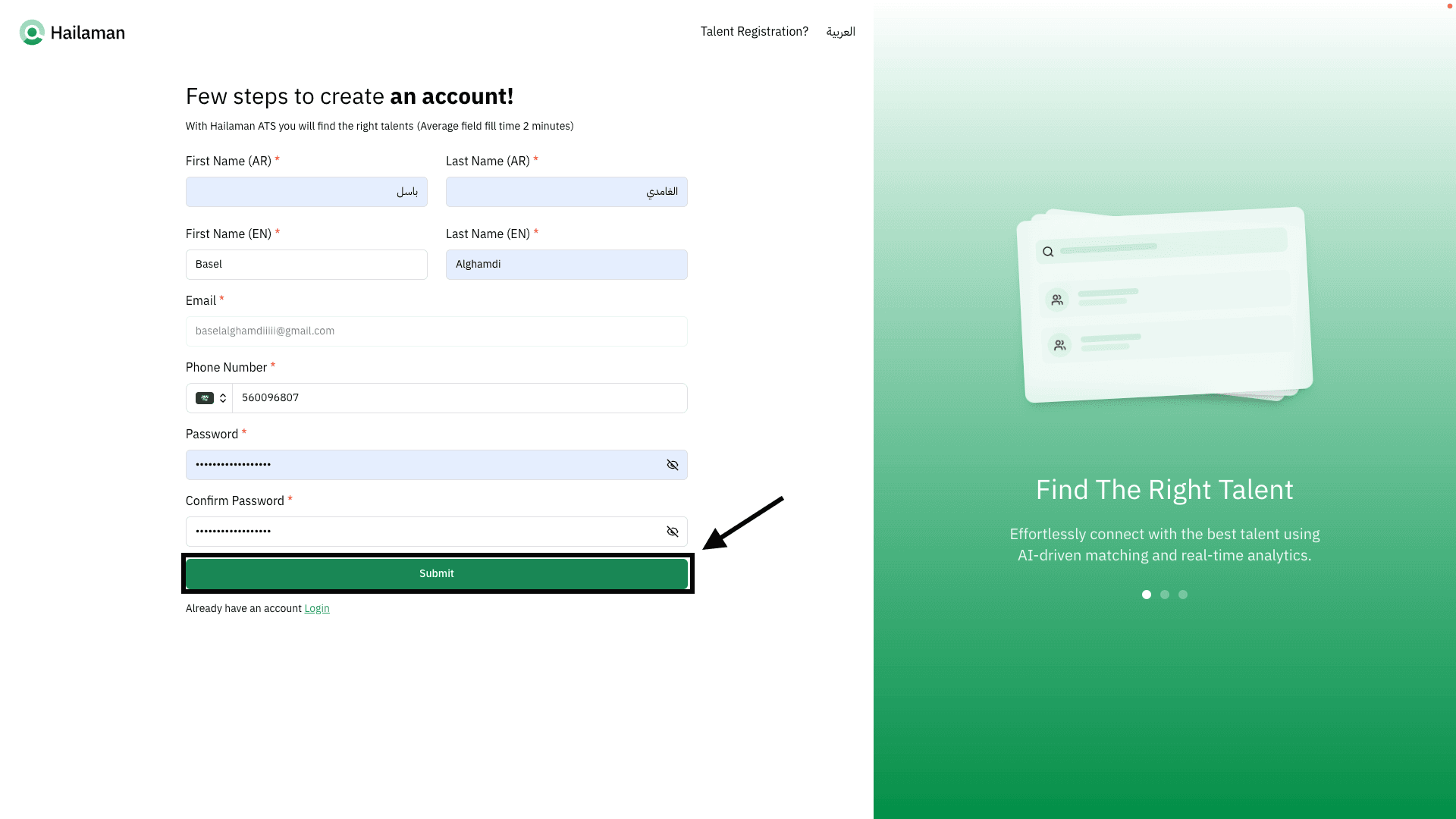
After filling in the information, the employee clicks on “Submit” to save all data.
The employee’s account and its status will then appear in the system.
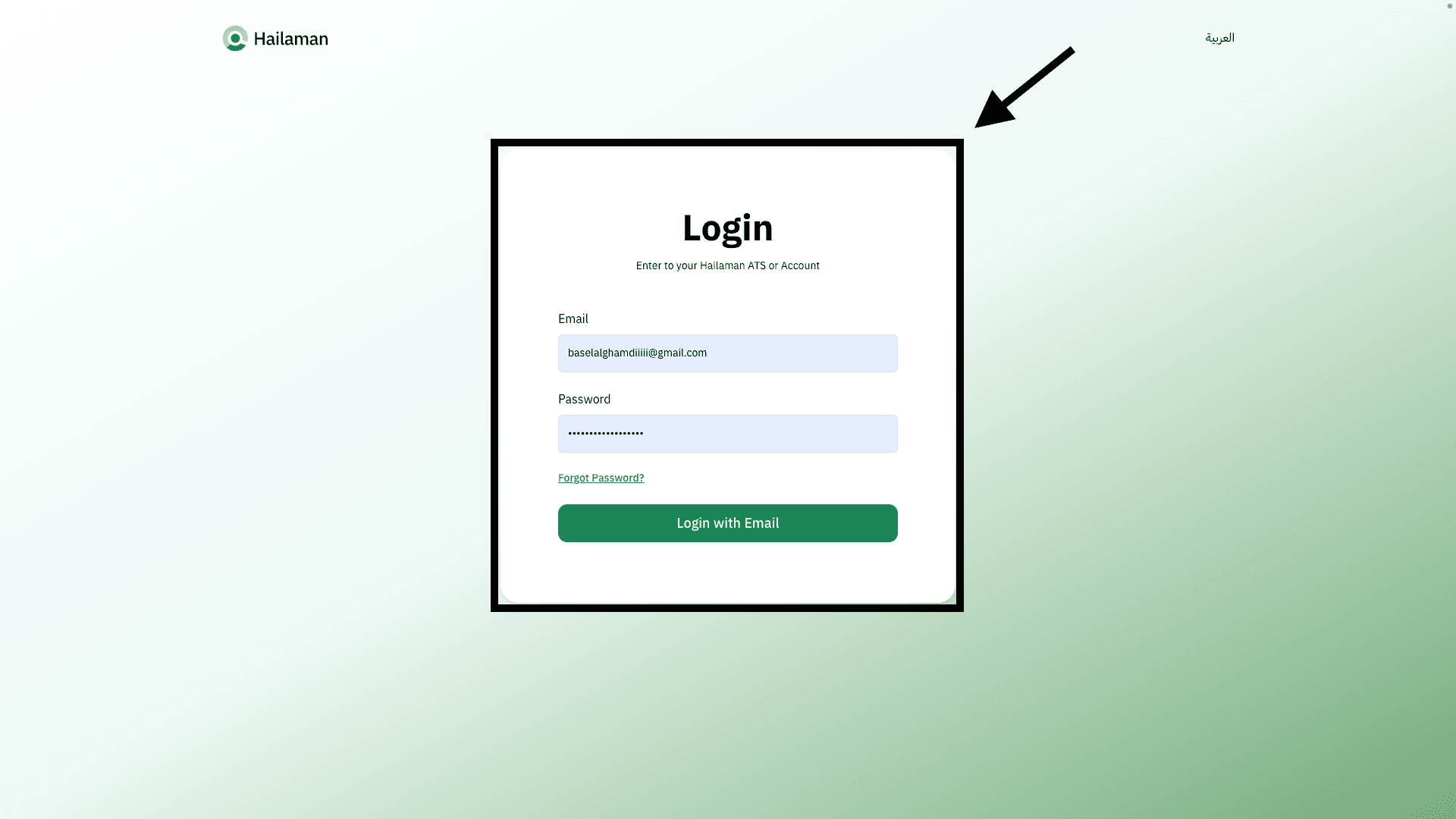
The employee can log in using their designated email and the password they set.
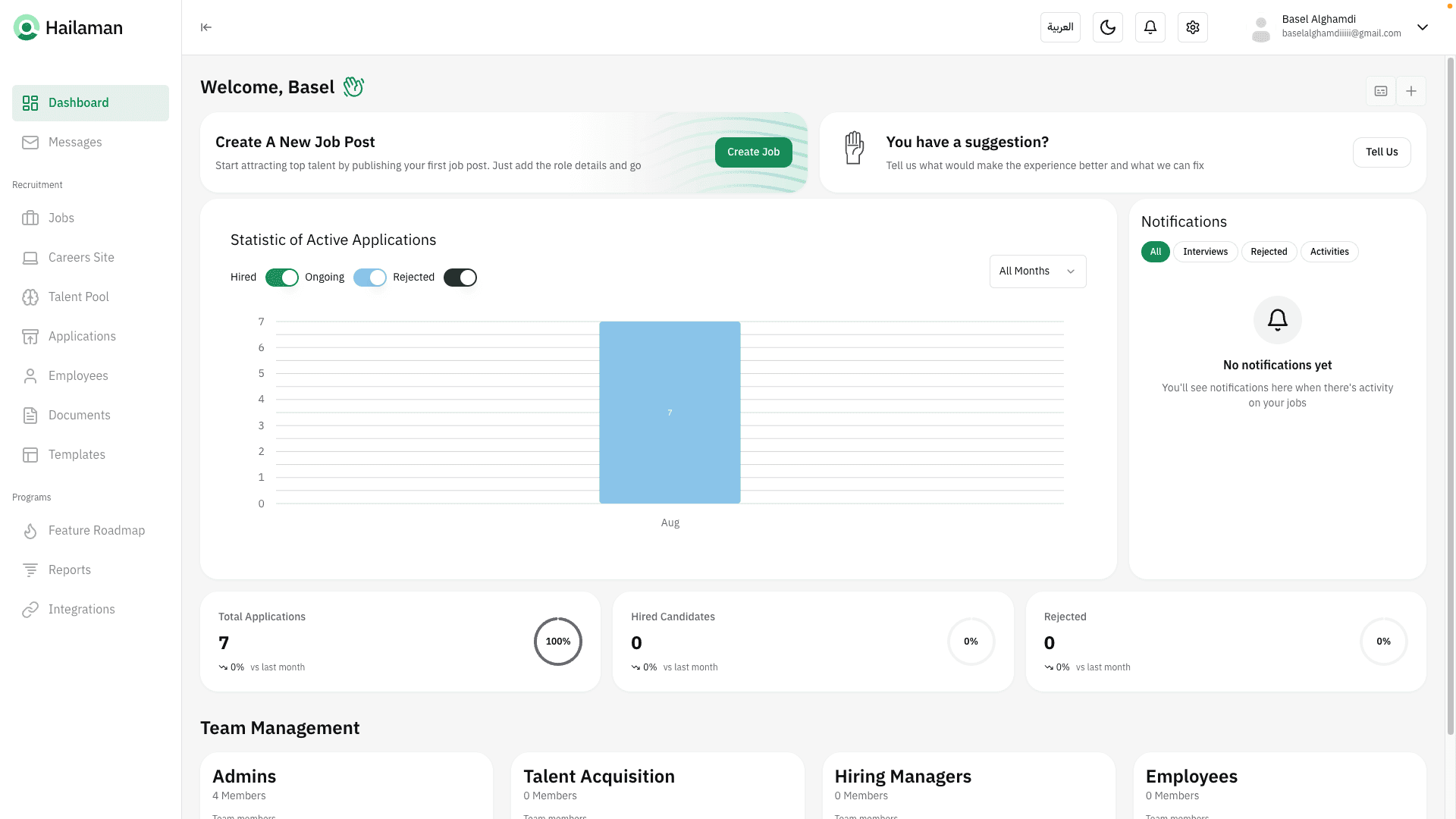
The employee’s personal account and all their permissions will be displayed.
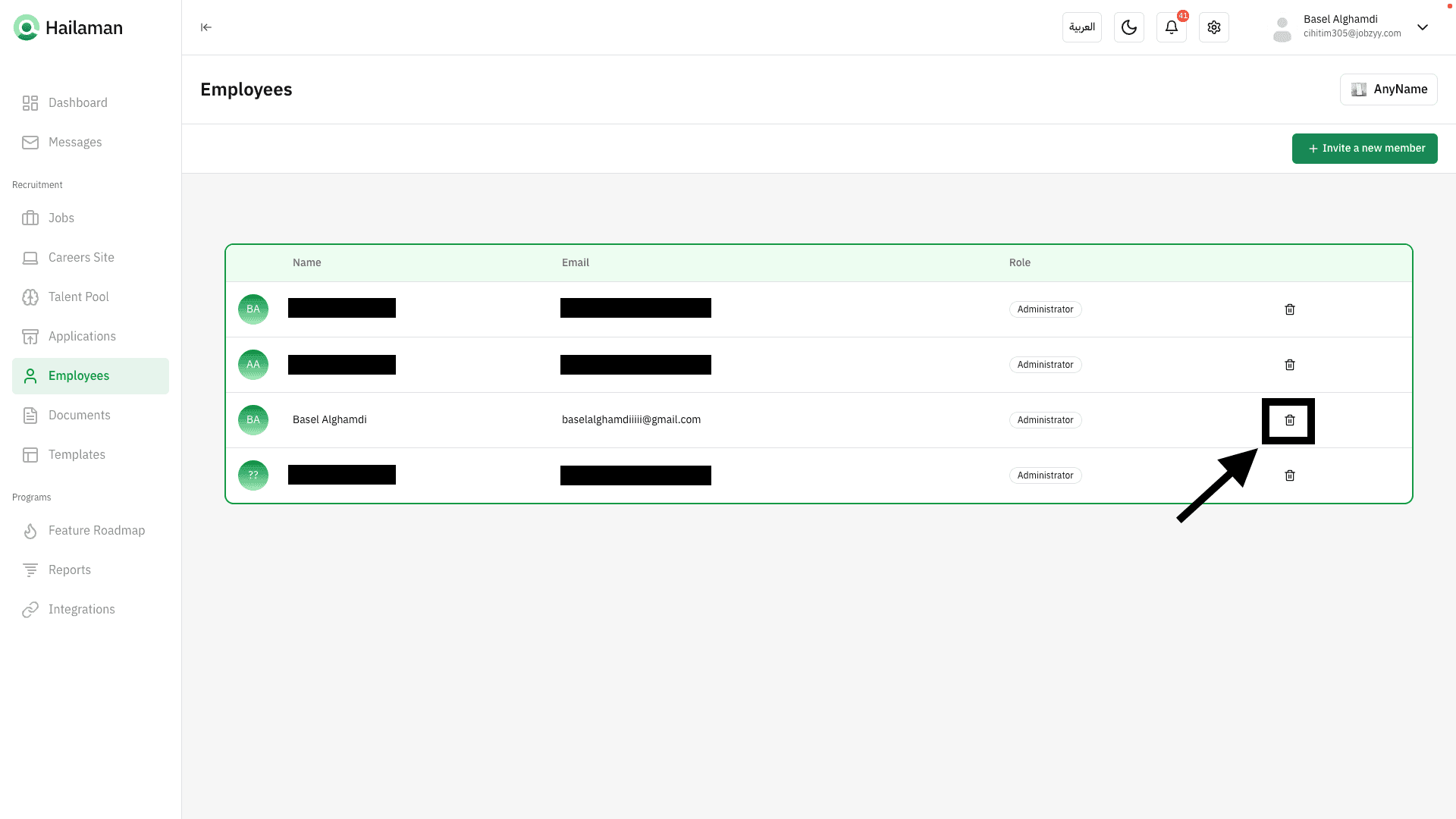
The admin can also delete the account at any time if needed.
Join Us Hailaman ATS
Any other questions? Get in touch